Tallying trees
Tally trees by plot or as a 100% inventory: species, DBH, any fields you track, then the products up the stem. This chapter covers each tally method, the optional fields, the limiting-distance calculator, double sampling, 100% tallies, Voice Tally and finishing a plot.
5.1The tally screen
Open a plot’s tally from the tree button on the Plots list (Chapter 4), from a plot on the map, or from Open Tally when you arrive at a plot.
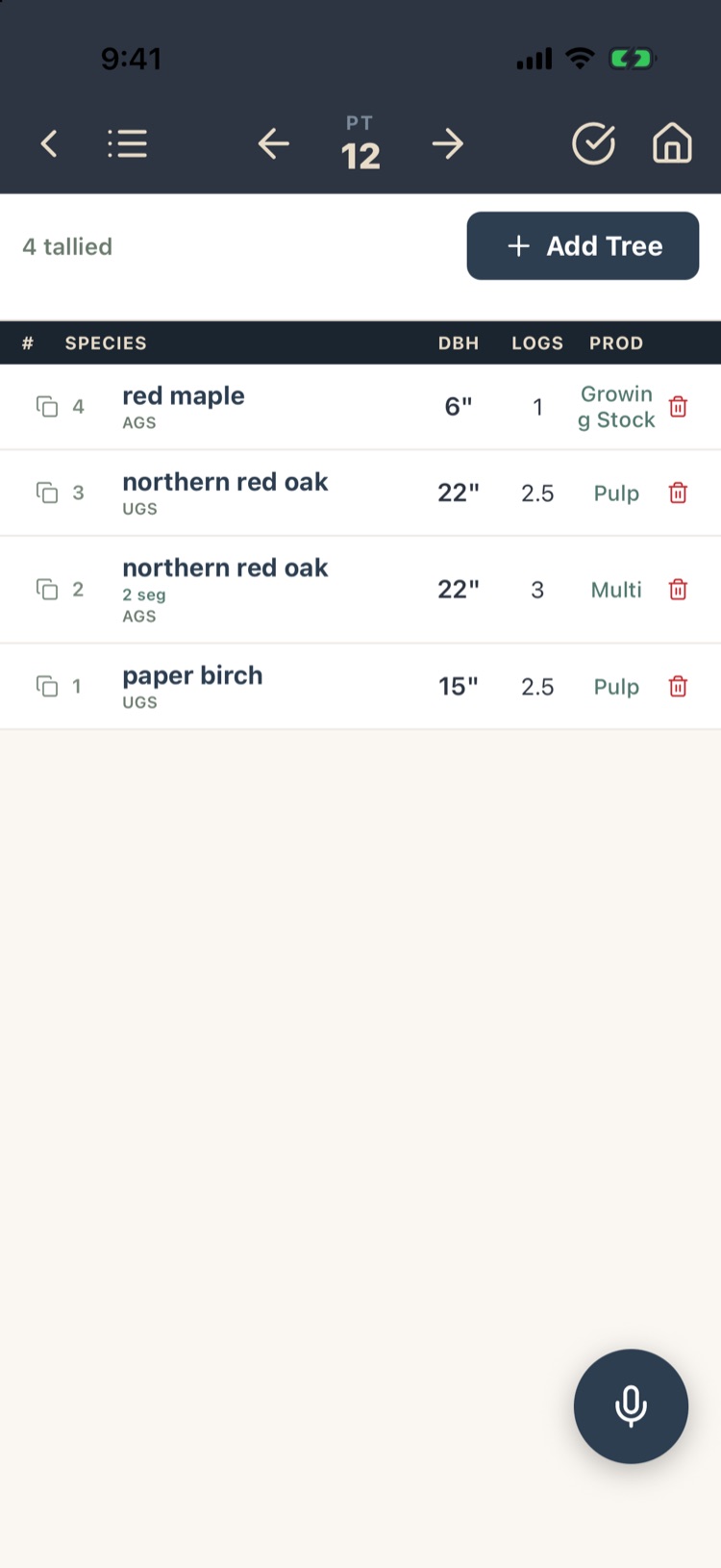
Along the top bar, left to right:
| Button | What it does |
|---|---|
| ‹ | Back to the Plots list. |
| ☰ | The plot’s observations: notes, photos, snags, regeneration and the rest (Chapter 6). |
| ← PT 12 → | Previous plot, this plot’s number, next plot. Tap the number for Select Plot, which lists every plot that isn’t done with its tree count. |
| # | The Pulp Clicker, if you turned it on (section 5.11). |
| ✓ | Mark the plot done, or reopen it (section 5.13). It turns green when the plot is done. |
| ⌂ | Project Home. |
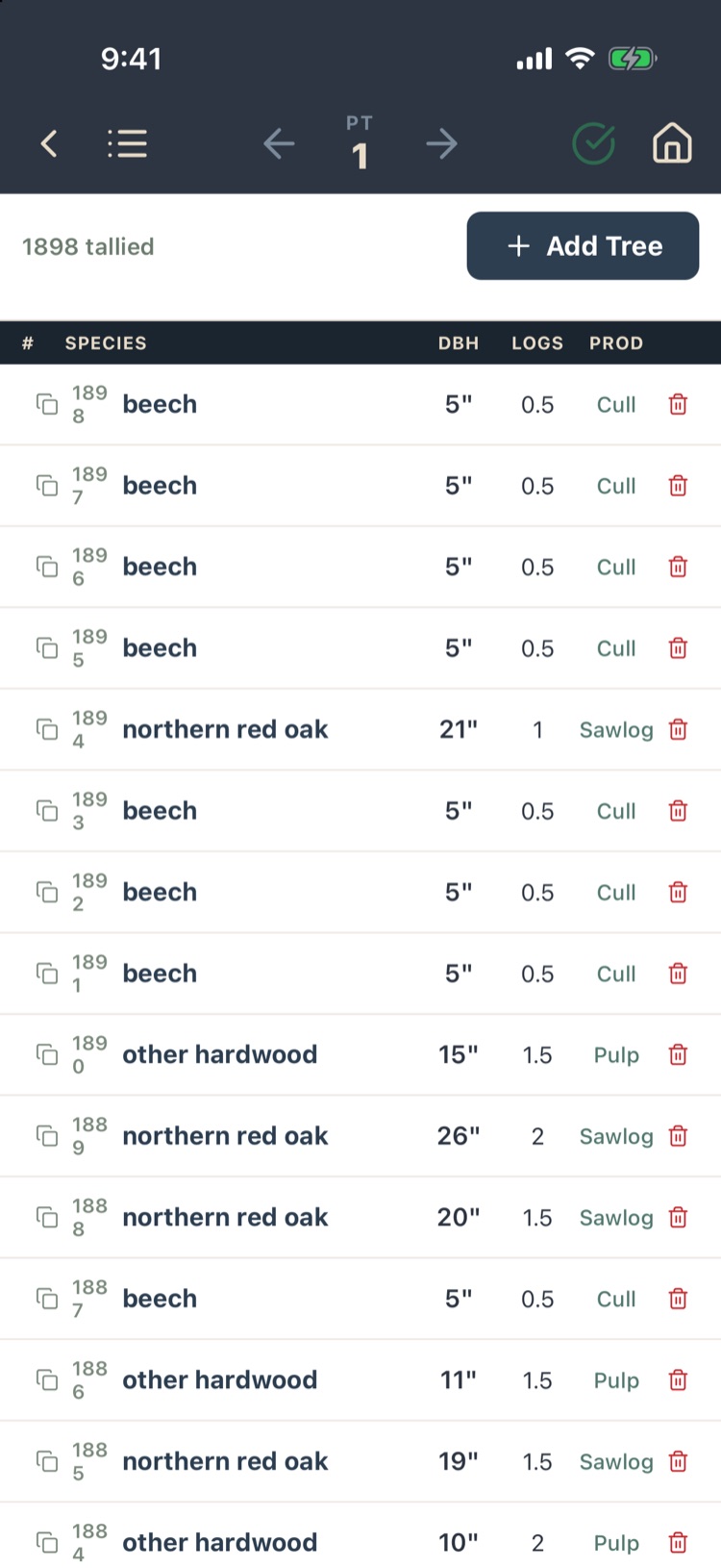
Below the bar: how many trees are tallied, Add Tree, and the tree list: tree number, species (with any field answers, such as AGS), DBH, logs and product. Multi means the tree has more than one product. The microphone at the bottom right is Voice Tally (section 5.12).
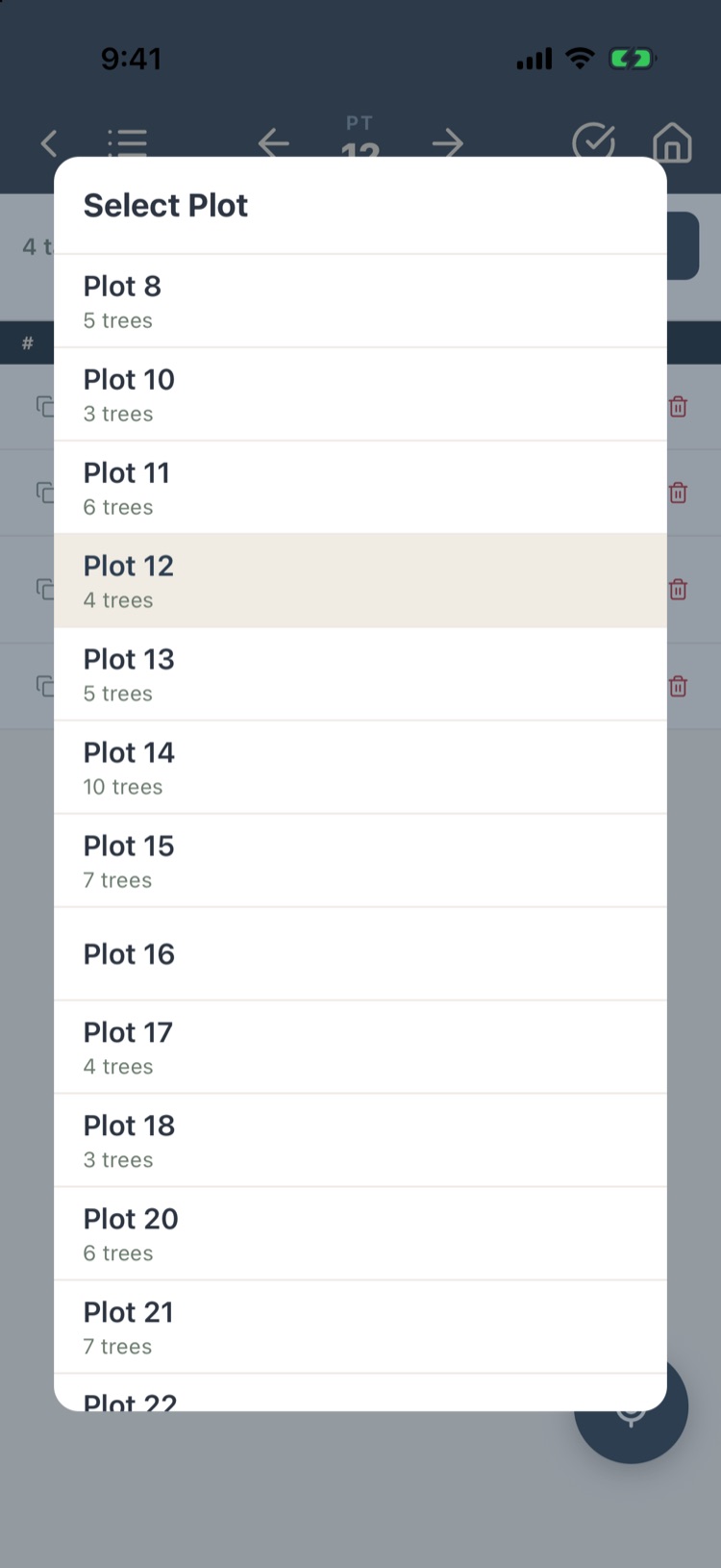
Leaving a plot that isn’t marked done asks Is this tally complete? Yes marks it done; No leaves it open. Plots with trees count in reports either way; a plot with no trees counts only if it’s marked done (section 5.13).
5.2Choosing a tally method
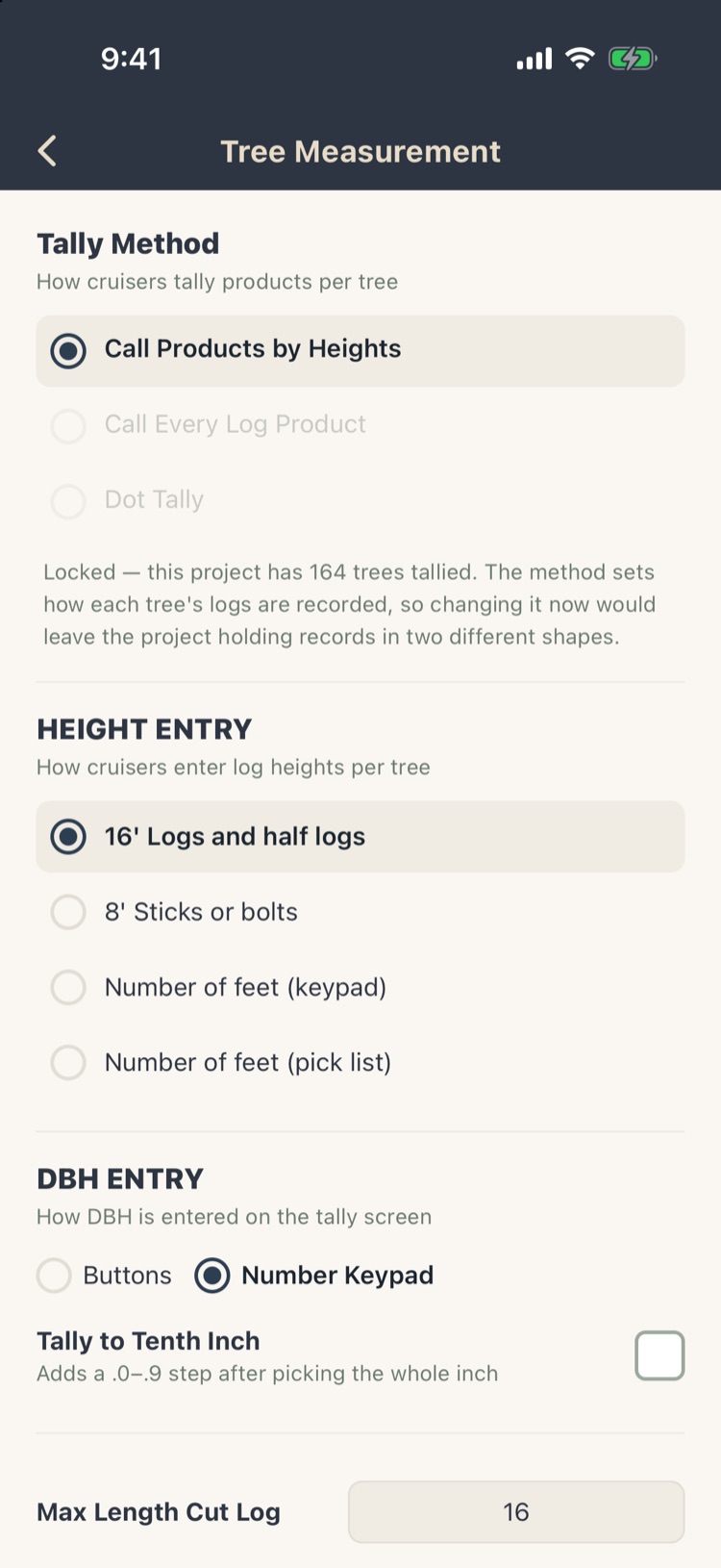
How you record products is set under Settings › Tree Measurement Method:
- Call Products by Heights. Call a product and its height, then the next product up the stem, up to 6 per tree. The most common choice (section 5.3).
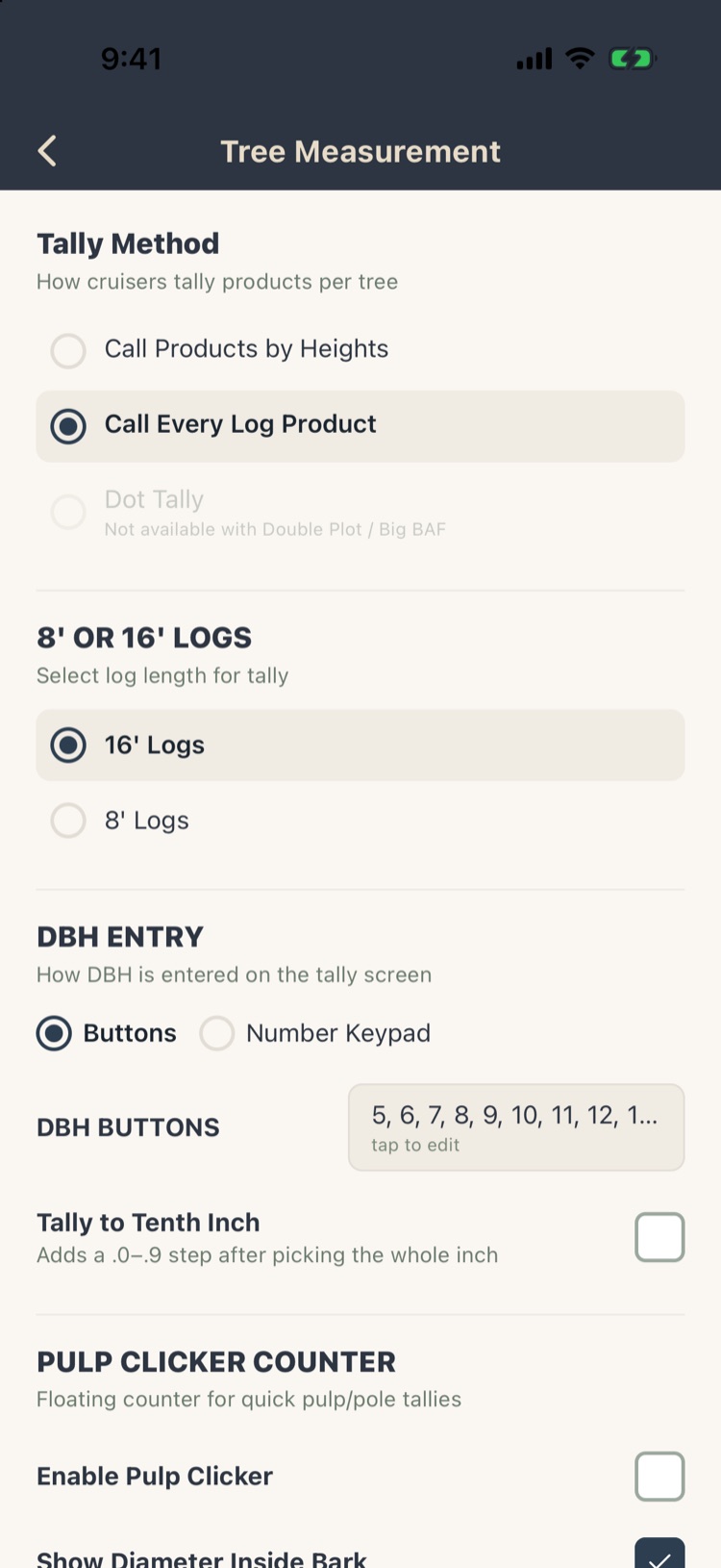
- Call Every Log Product. Every log is the same length, 8' or 16', and you call a product for each, up to 12 logs (section 5.4).
- Dot Tally. Tap a DBH × height cell for each tree, one product per species. The fastest method, without per-tree detail (section 5.10). Not available with double sampling.
As soon as a project has a tallied tree, its tally method and height entry are locked, so a project never holds trees recorded two ways. Choose before the first tree; the setting comes from your template (Chapter 10).
The same screen sets:
- Entry Order (products by heights): Length, then product (the default for new templates) or Product, then length.
- Height Entry (products by heights): 16' logs and half logs, 8' sticks or bolts, feet on a keypad, or feet from a pick list you can edit.
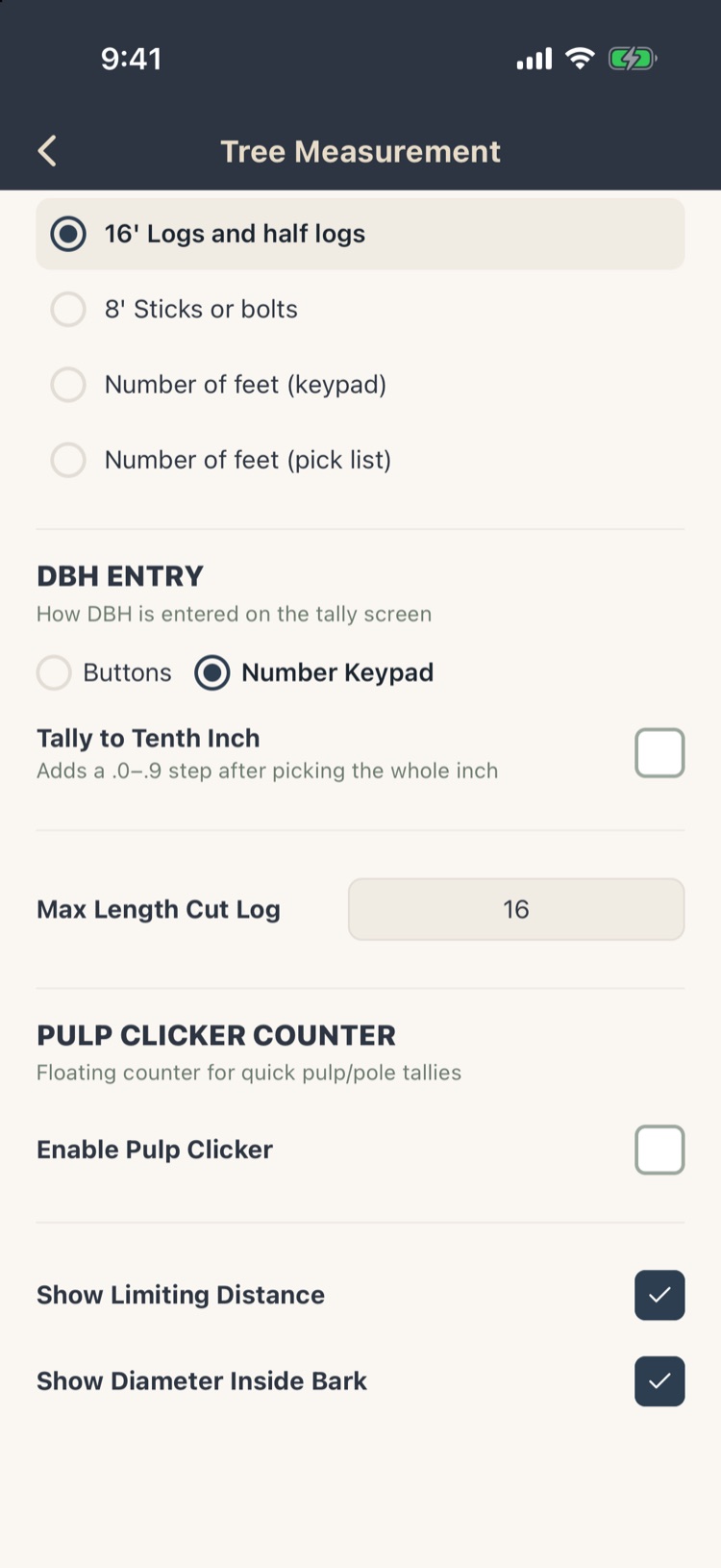
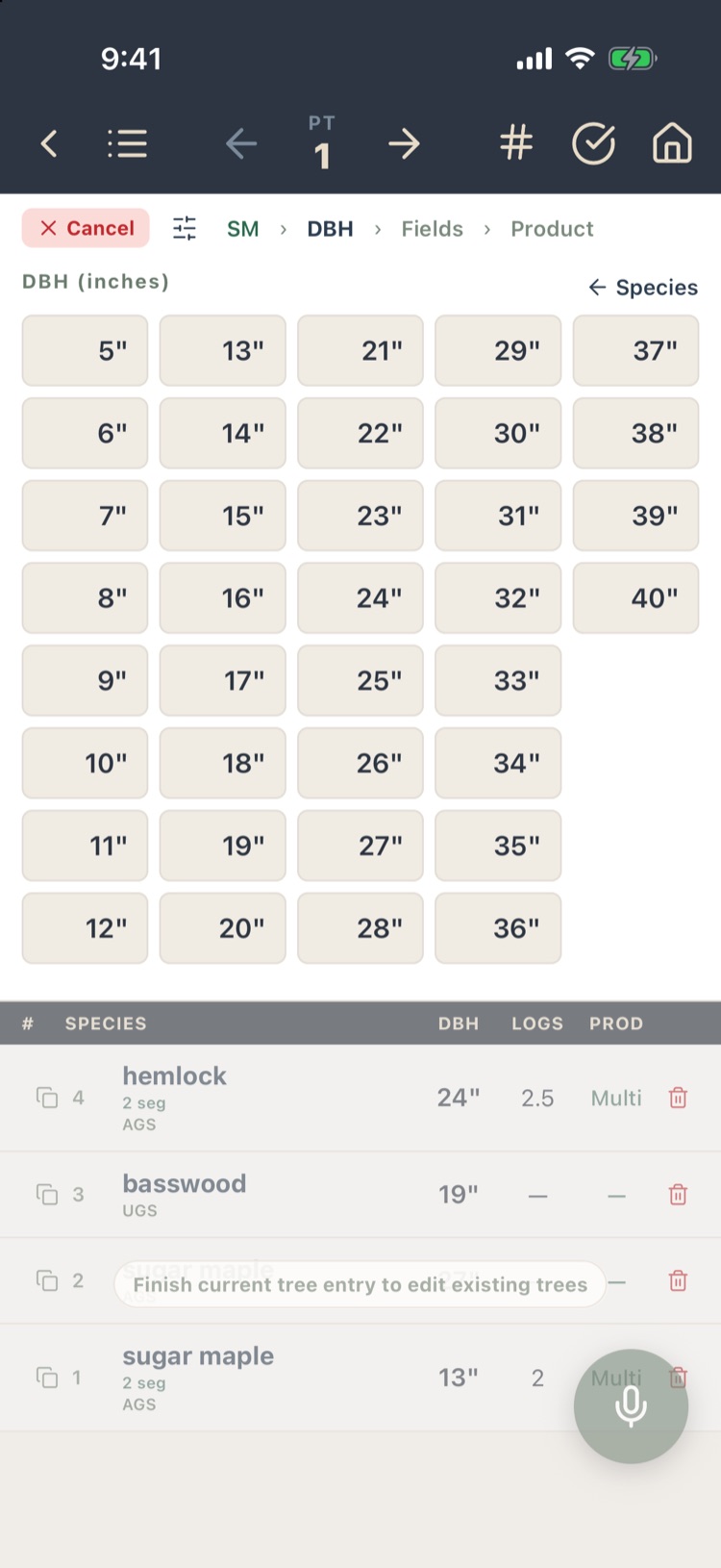
- DBH Entry: Buttons (5" to 40" by default; tap the list to edit it) or a Number Keypad. Tally to Tenth Inch adds a .0–.9 step after the whole inch.
- Max Length Cut Log: the longest log the volume engine cuts a call into. A 40' sawlog call at 16 becomes 16 + 16 + 8.
- Pulp Clicker (section 5.11), Show Limiting Distance (section 5.7) and Show Diameter Inside Bark, which shows the DIB at the top of each call while you tally.
5.3Entering a tree: products by heights
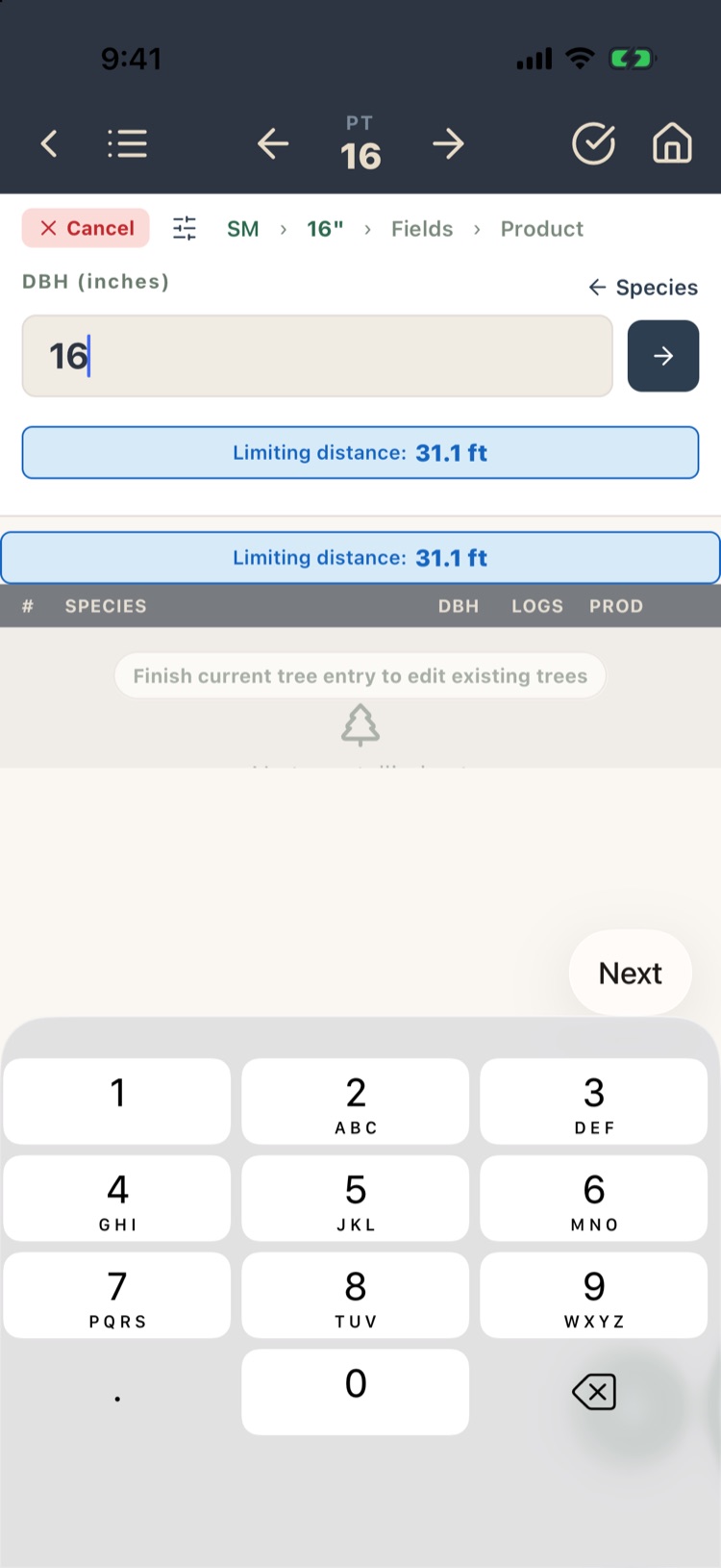
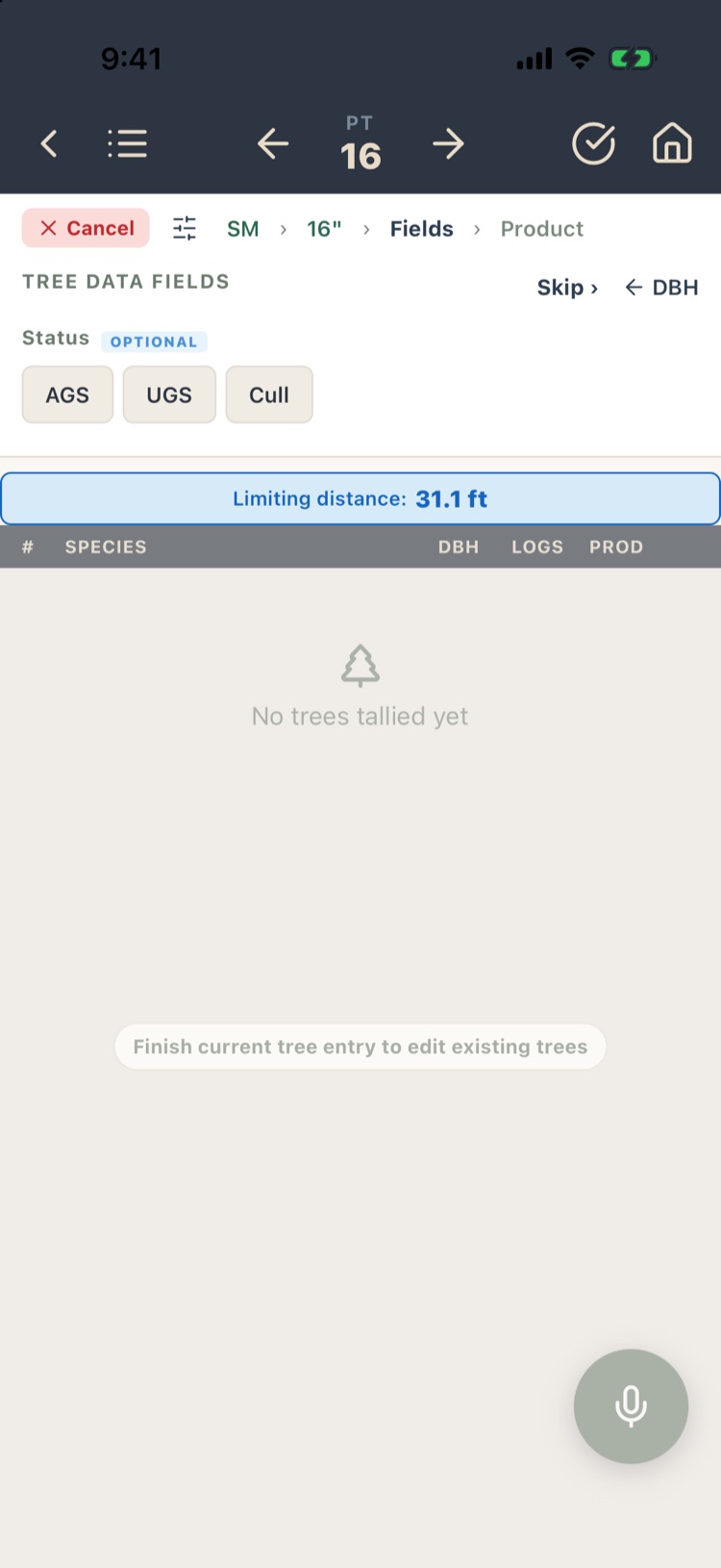
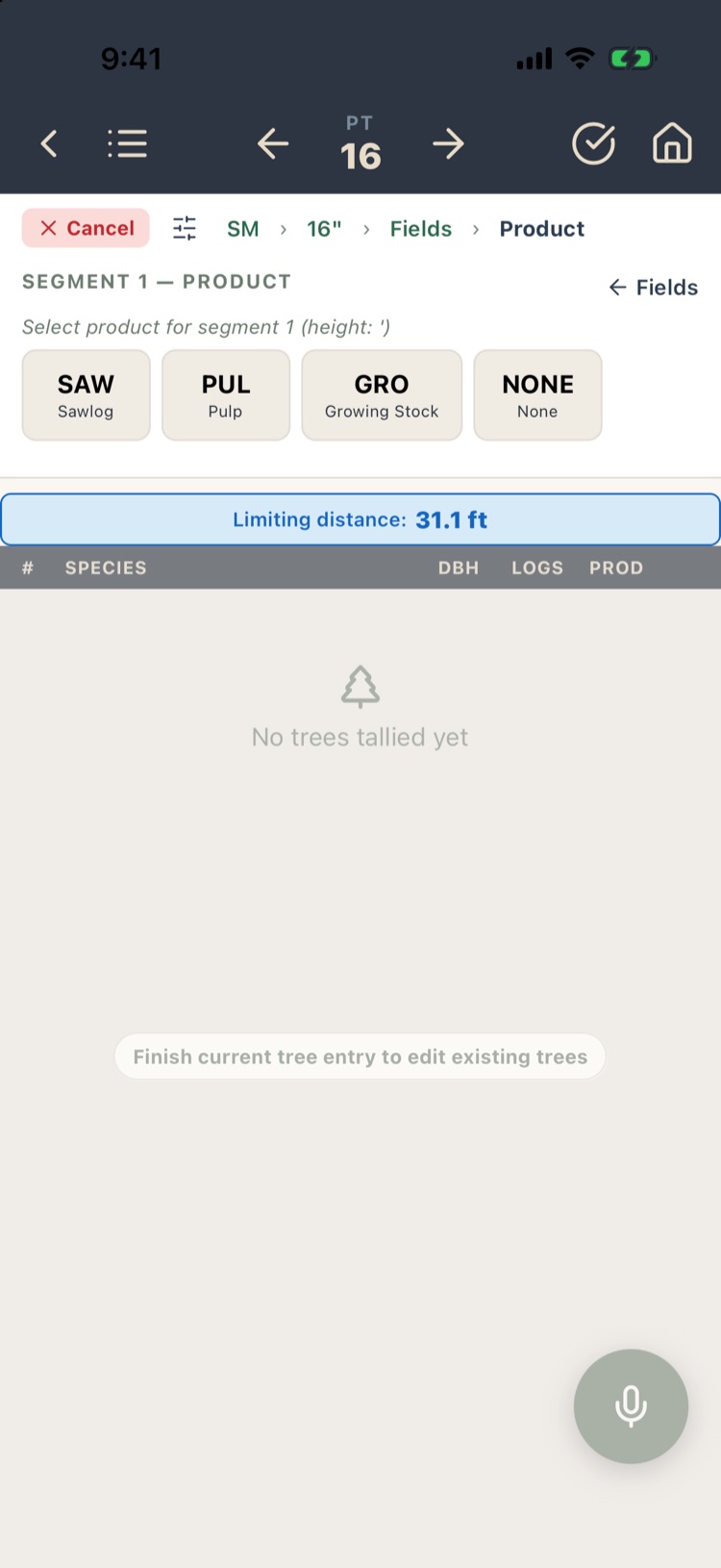
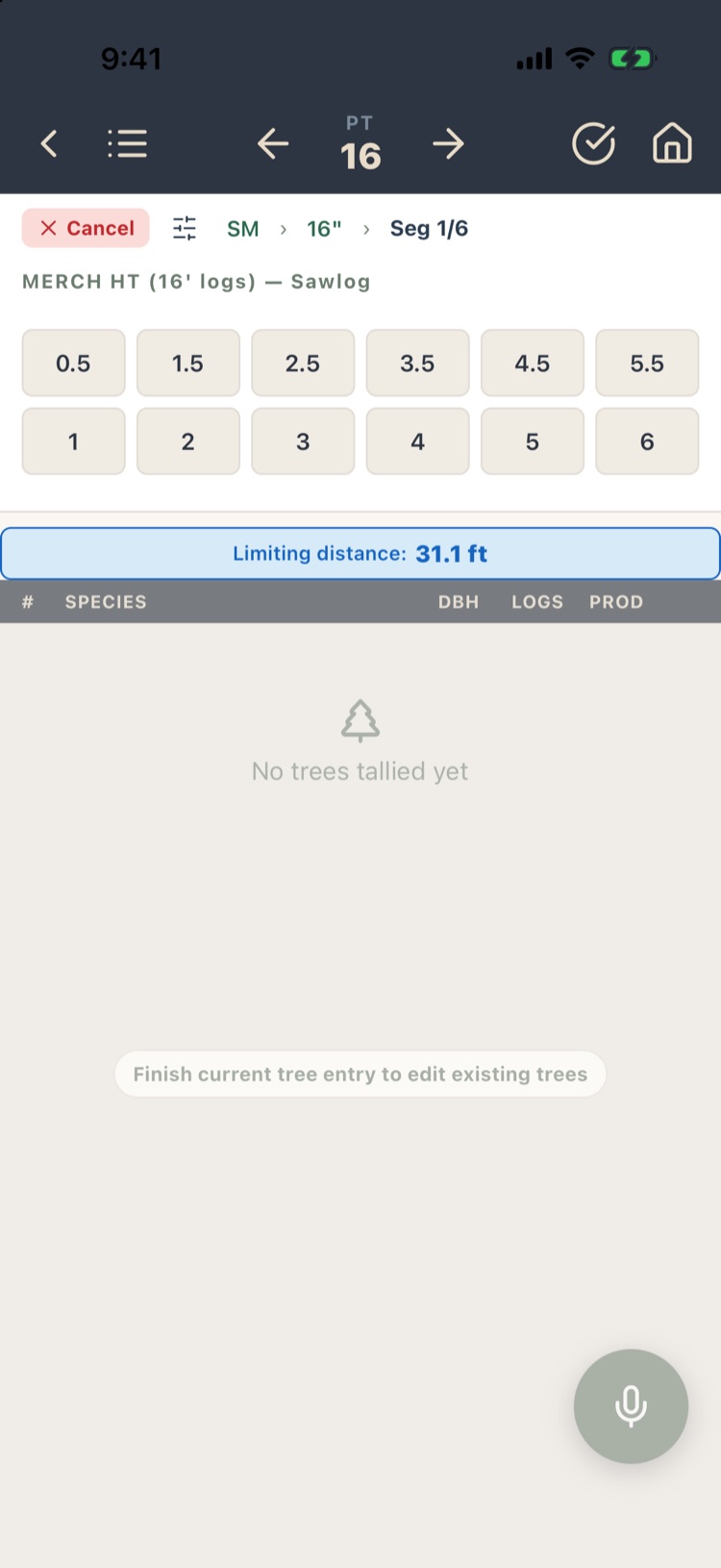
Tap Add Tree. The entry panel steps you through the tree, and the trail at the top (Species › DBH › Fields › Product) shows where you are. Tap ← Species, ← DBH and so on to go back a step.
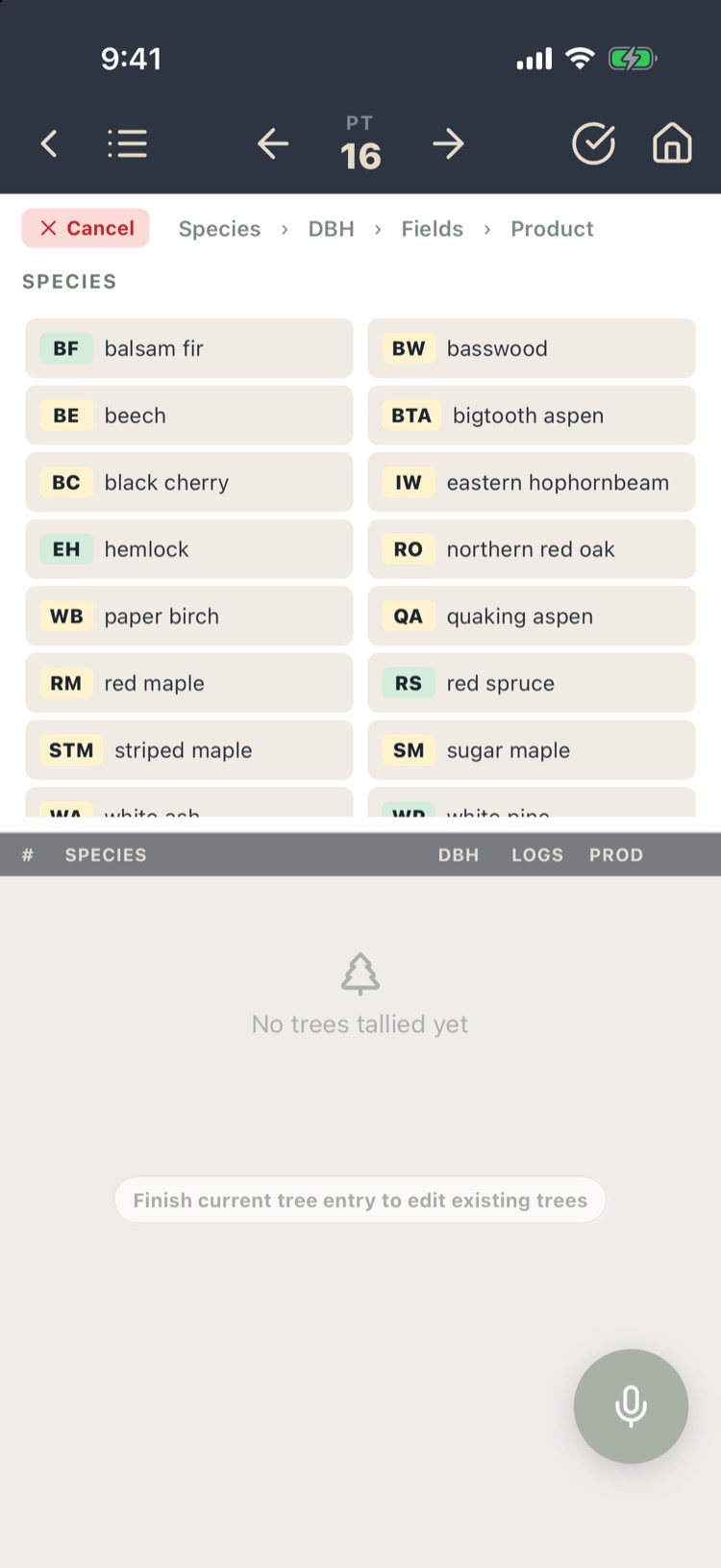
- Species. Tap it in your pick list. The list comes from Settings › Tree Species; species saved to the top come first (Chapter 10).
- DBH. Tap a button, or type it and tap the green arrow. With tenths turned on, pick the tenth next.
- Tree data fields. Your custom fields, each marked Required or Optional. Tap an answer to move on, or Skip › past optional ones. The step is skipped when you have no fields.
- Product. Pick the first product from the butt: sawlog, pulp, growing stock, or None for a tree with no merchantable product (it counts for stocking, with no volume). Products that don’t meet your product specifications for this species and diameter are greyed out or flagged (Chapter 10).
- Height. The length of that product, in your height units. 2 means two 16' logs.
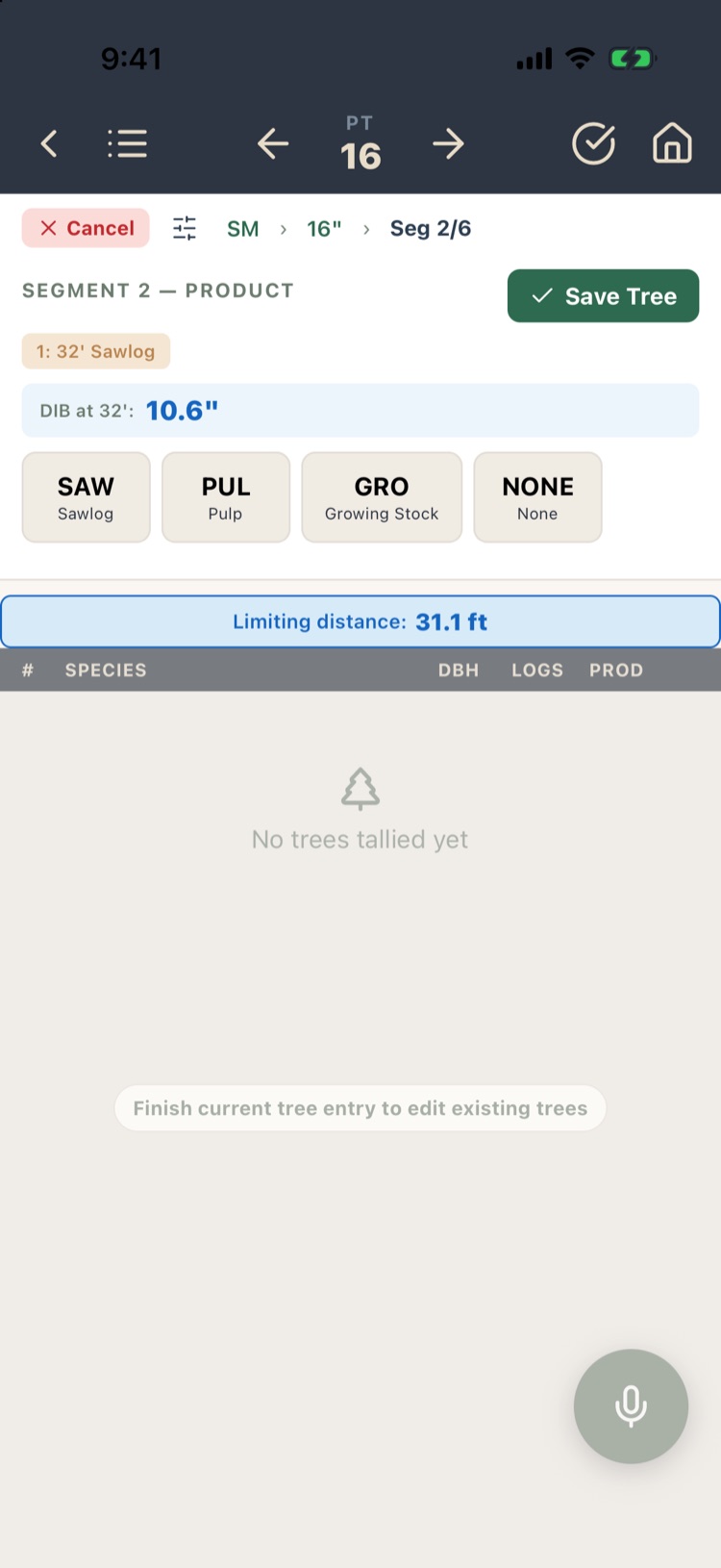
- The next product. The panel now shows what you’ve called so far (1: 32' Sawlog) and the diameter inside bark at the top of it. Call the next product up the stem and its height, or tap Save Tree if that was the last.
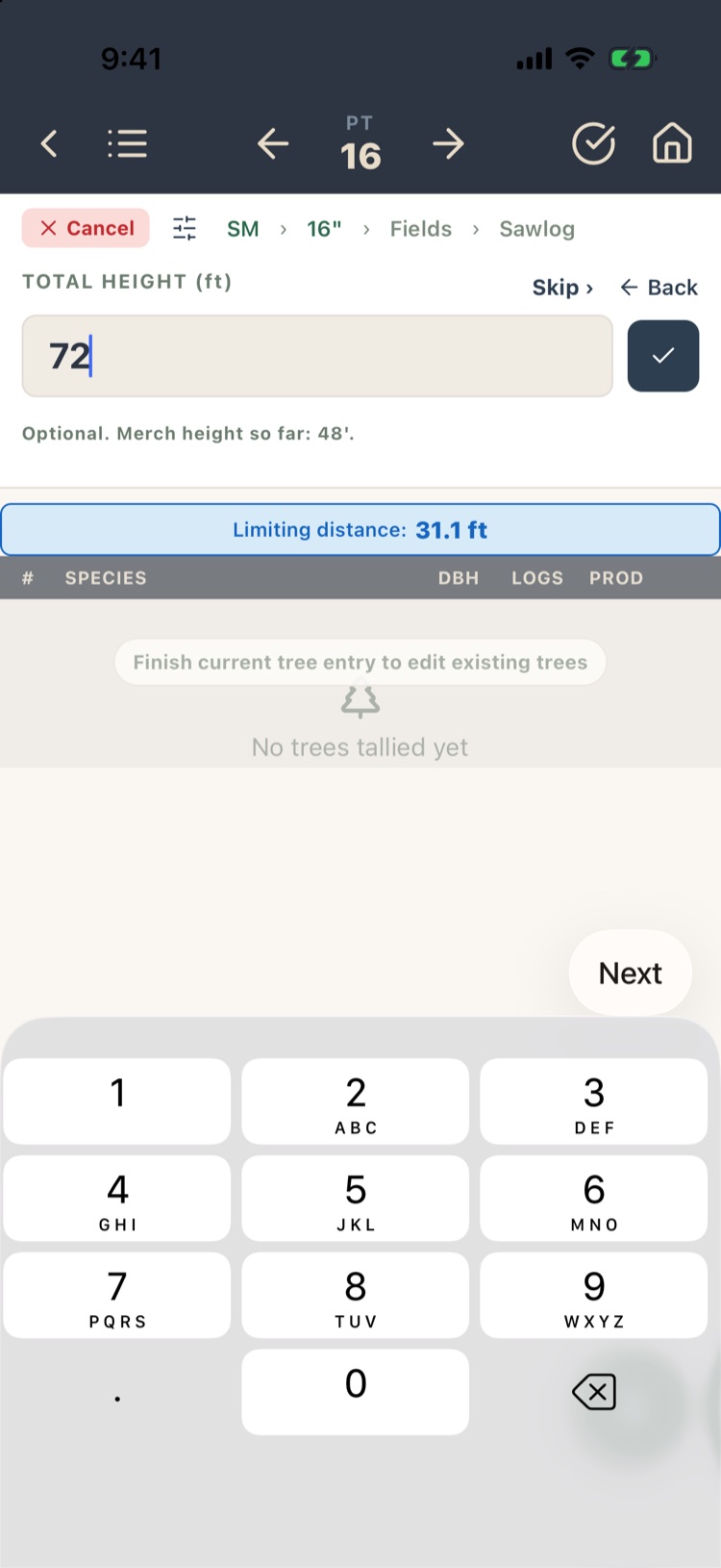
- Total height, if you turned it on (section 5.6). Type it, or tap Skip ›.
The tree joins the list and the panel is ready for the next one. Each saved tree gives a short vibration and a beep; turn sounds off under Settings › Other.
To abandon a tree part-way, tap ✕ Cancel. The app asks Discard Tree?: Keep Entering or Discard. The tree list is locked while you’re entering a tree.
5.4Call Every Log Product
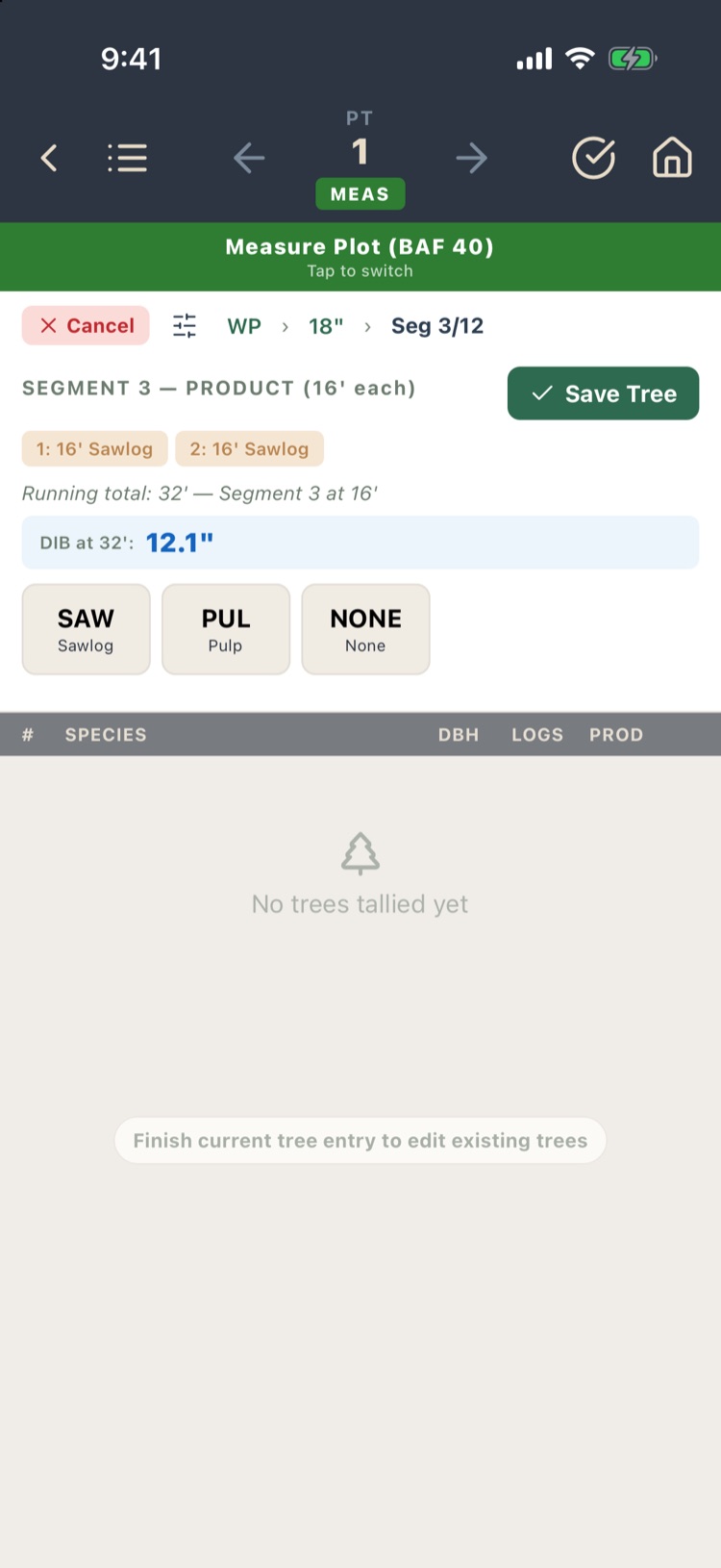
With Call Every Log Product, every segment is the same length, 16' or 8' as chosen in the settings, and you name the product of each one from the butt up. There’s no height to enter: each tap is one more log.
- The trail shows Seg 3/12: the segment you’re on and the most a tree can have.
- Running total: 32' and the DIB at that height help you judge where the merchantable top is.
- Tap Save Tree after the last log.
5.5Editing and deleting trees
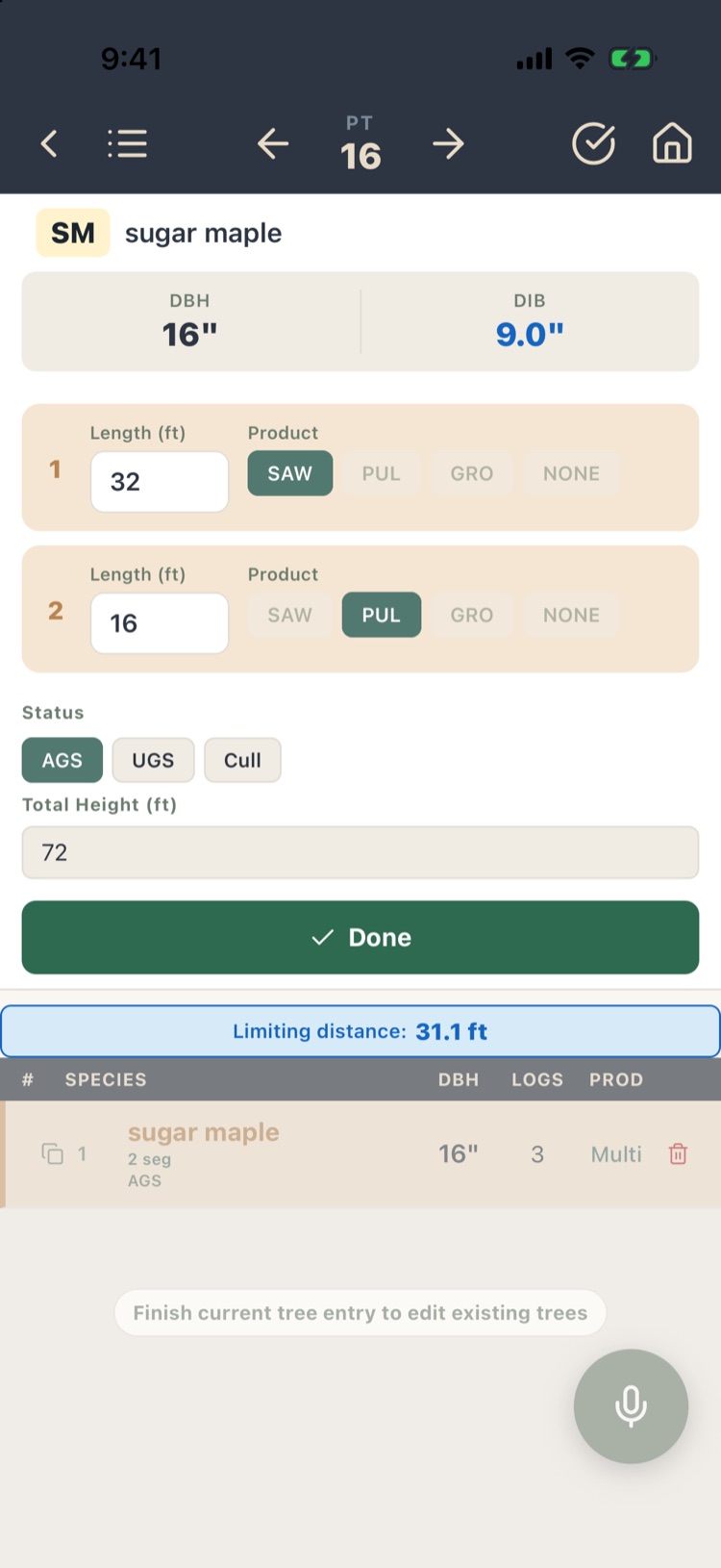
Tap a tree in the list to open it. You can change its species, DBH, each segment’s length and product, field answers, total height and the other optional fields. DBH and the computed DIB are shown at the top. Tap Done to save.
To delete a tree, tap the red trash at the end of its row and confirm.
Volumes are recalculated as soon as you save. A project shared with you may be read-only; editing then needs the owner’s permission (Chapter 12).
5.6Optional tree fields Pro
Beyond species, DBH and products, a tree can carry:
- Your custom fields, such as crown class, AGS/UGS or a damage code, set up under Settings › Custom Tree Data. Each is On (asked, can be skipped) or Required (the tree can’t be finished without it). Basic includes one field.
- Defect: a type and an amount, taken off the volume.
- Total height: On asks once per tree with Skip; Required holds every save until it’s entered. Total height is required when the Clark & Souter or Behre’s hyperbola taper model is selected; choosing one of them sets this to Required.
- Manual tree number, for trees you’ve tagged. You only need it when you assign tree numbers, such as for CFI plots or a high-value timber sale.
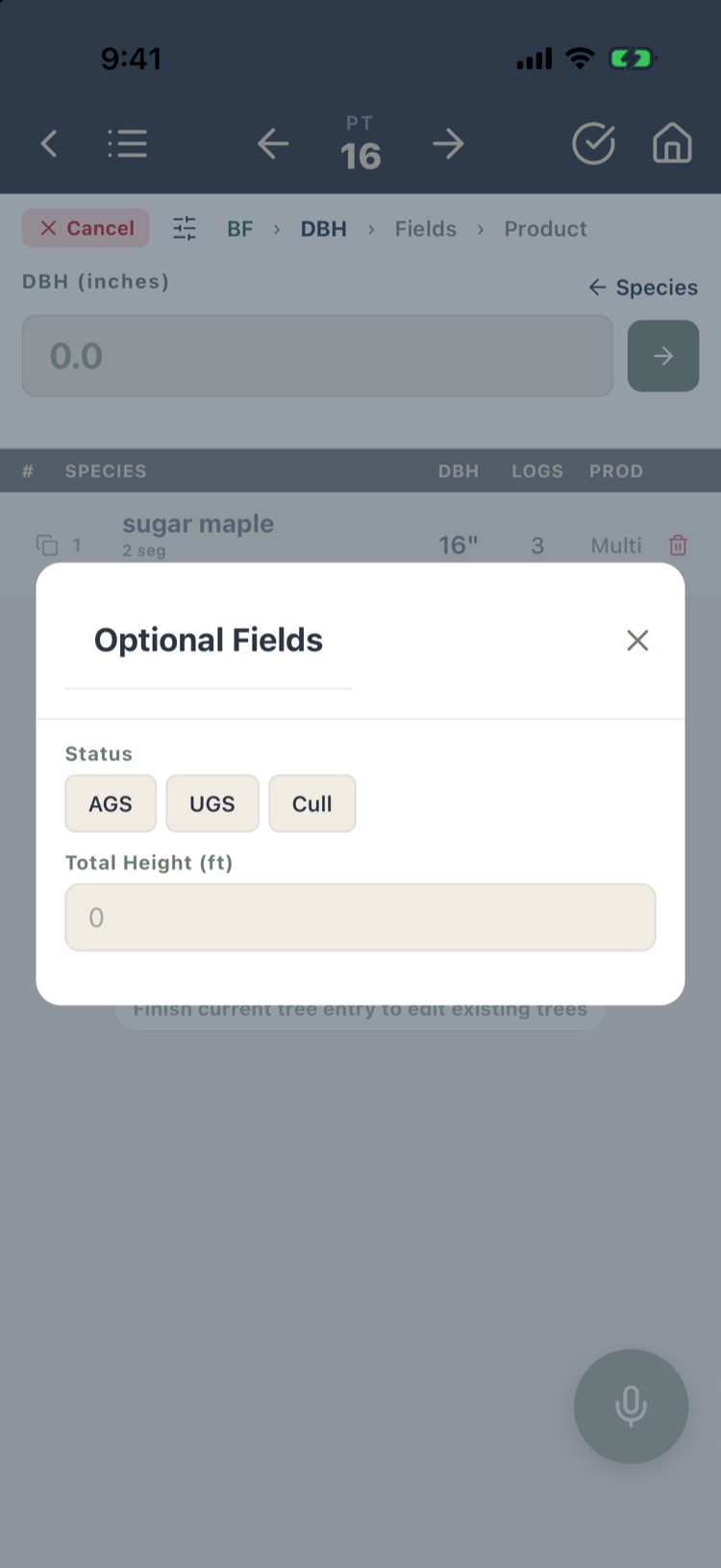
During an entry, the ☰ icon beside Cancel opens Optional Fields, so you can fill in anything you skipped without leaving the tree.
5.7Limiting distance
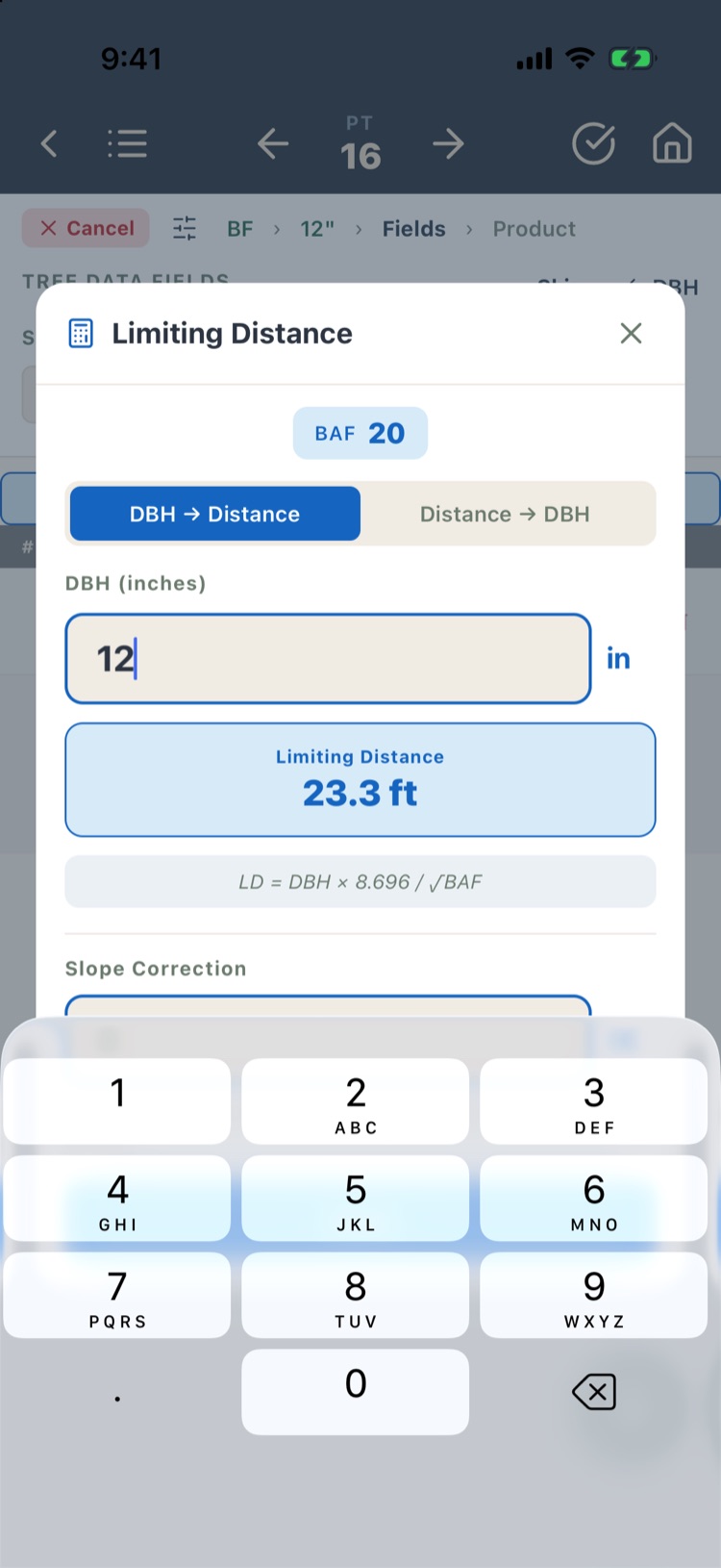
On variable-radius plots, a blue bar shows the limiting distance for the DBH you just entered: Limiting distance: 23.3 ft for a 12" tree at BAF 20. A tree farther from plot center than that is out.
Tap the bar to open the calculator:
- DBH → Distance: the limiting distance for a DBH.
- Distance → DBH: the smallest DBH that is in at a distance you measured.
- Slope Correction: enter the slope in percent to correct a slope distance.
The formula is shown under the result. Whether you measure to the tree’s center or its face is set under Settings › Other › Target Reference. Turn the bar off with Show Limiting Distance.
5.8Double sampling
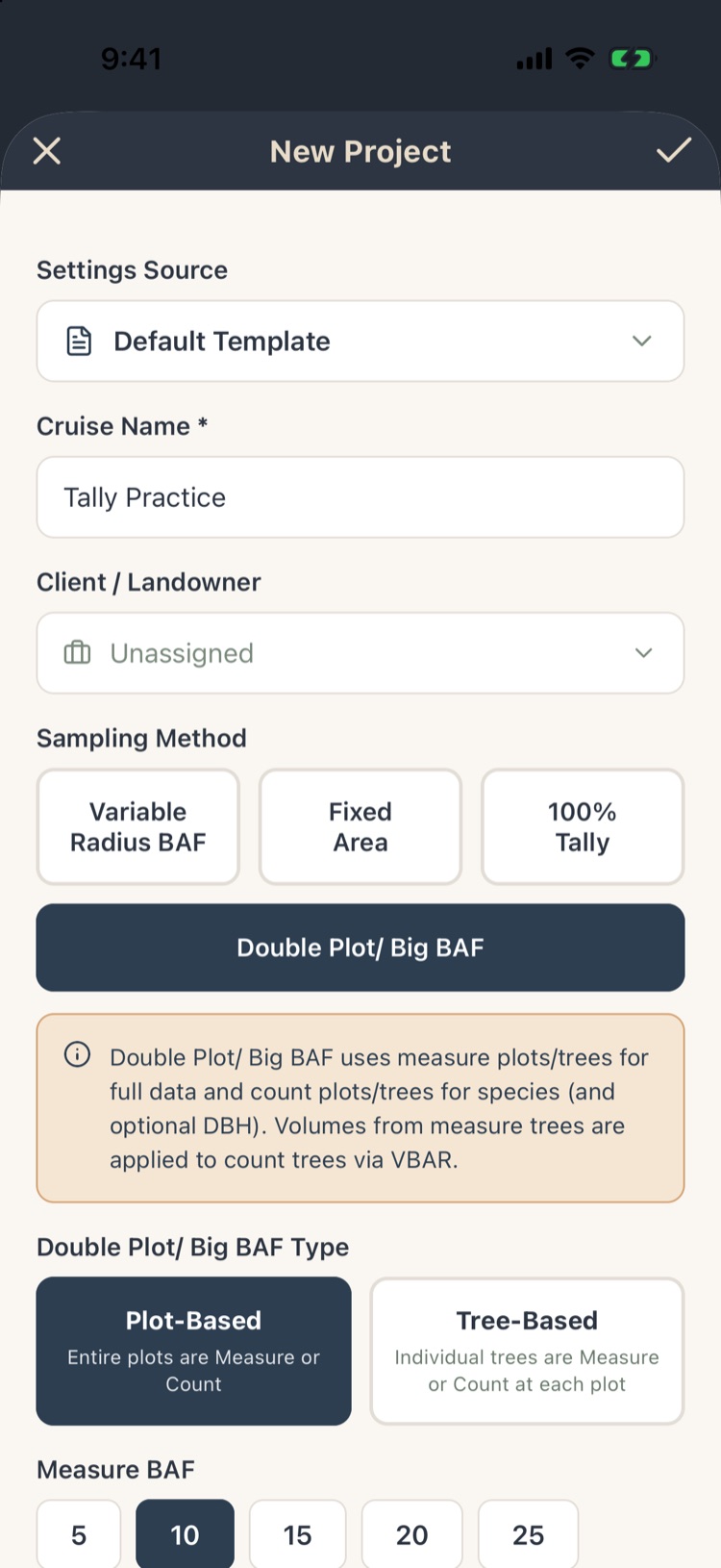
Double sampling (Big BAF, or count-and-measure) tallies many plots quickly and measures fully on a few. Volume per unit of basal area from the measured trees is applied to the counted basal area. Choose Double Plot / Big BAF as the sampling method in New Project or Edit Project and set:
- Plot-Based: whole plots are count plots or measure plots. Tree-Based: on every plot, some trees are counted and some measured.
- Measure BAF and Count BAF.
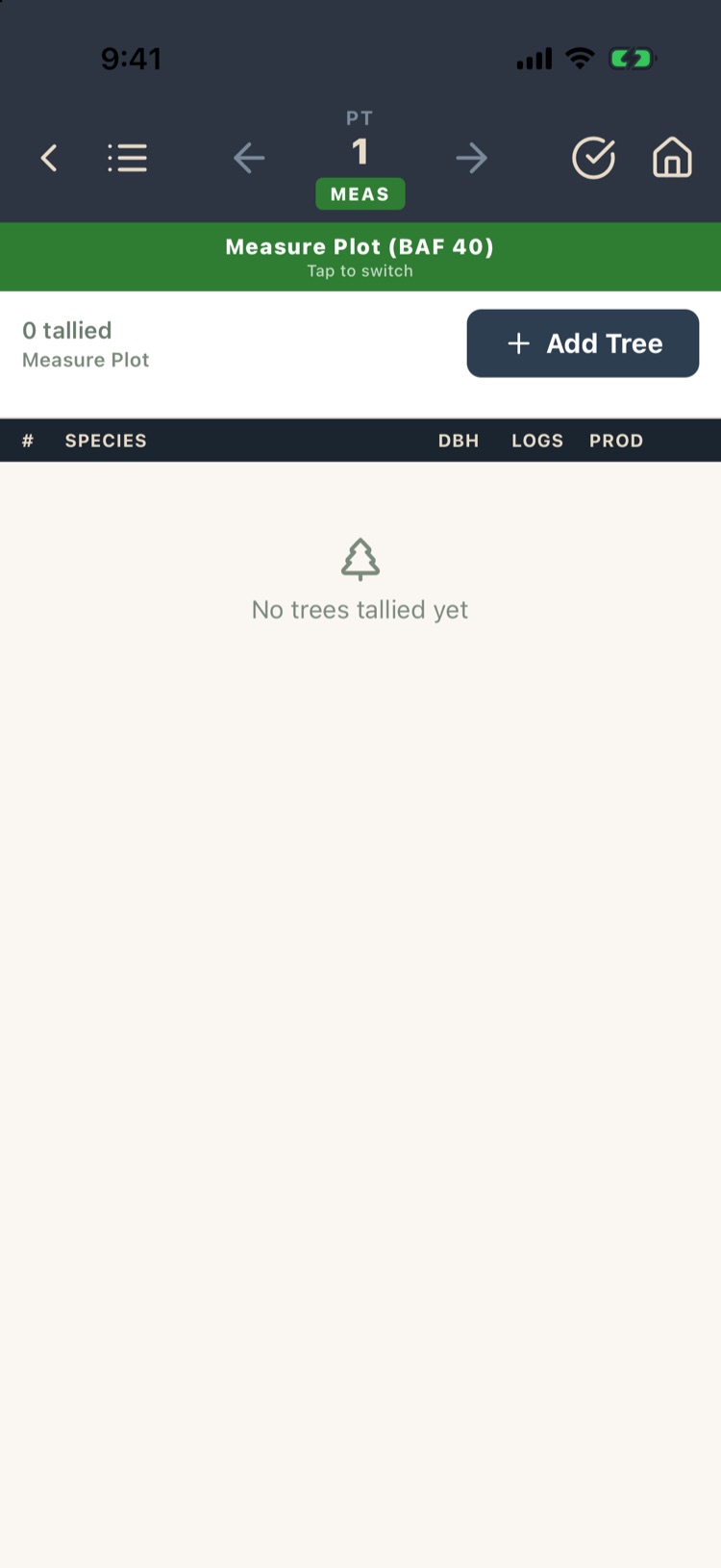
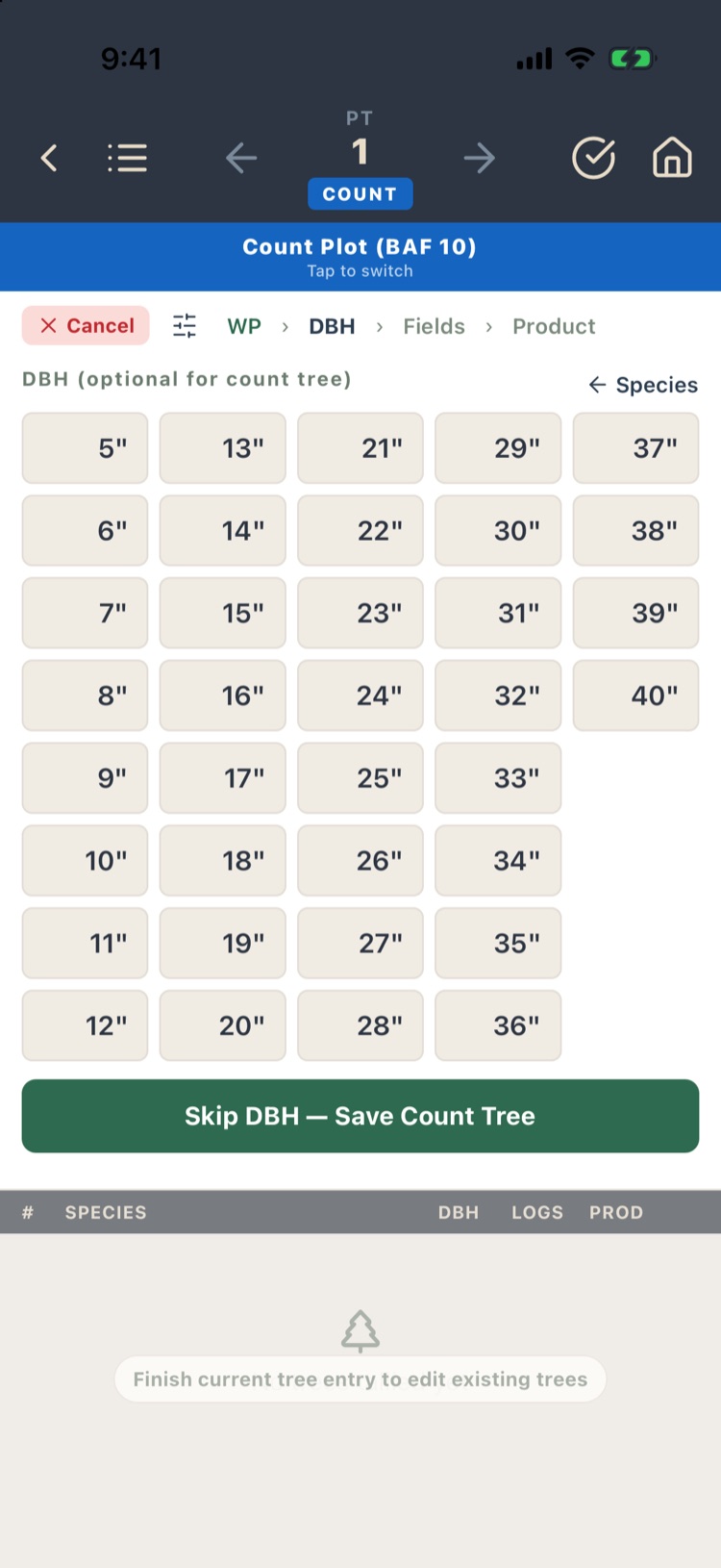
On the tally screen a banner shows the plot’s type: Measure Plot (BAF 40) in green or Count Plot (BAF 10) in blue. Tap the banner to switch. A measure plot takes full trees. A count plot takes the species and, if you like, the DBH: tap Skip DBH — Save Count Tree to record species only.
When selected, double sampling is applied to all stands. Dot Tally isn’t available with it.
5.9100% tally
In a 100% tally every tree in the stand is recorded, so there’s no BAF, no plot radius and no limiting distance. Choose 100% Tally as the sampling method for the project or for one stand (Chapter 3, section 3.9), and enter the stand’s acres: per-acre values are total trees ÷ acres.
- You can tally everything on one plot or split the work across several plots (by crew, by day). The results are the same.
- No sampling error is reported, because nothing was sampled.
- Make sure the stand has acres. Without them, reports can’t give per-acre figures and will say so.
5.10Dot Tally
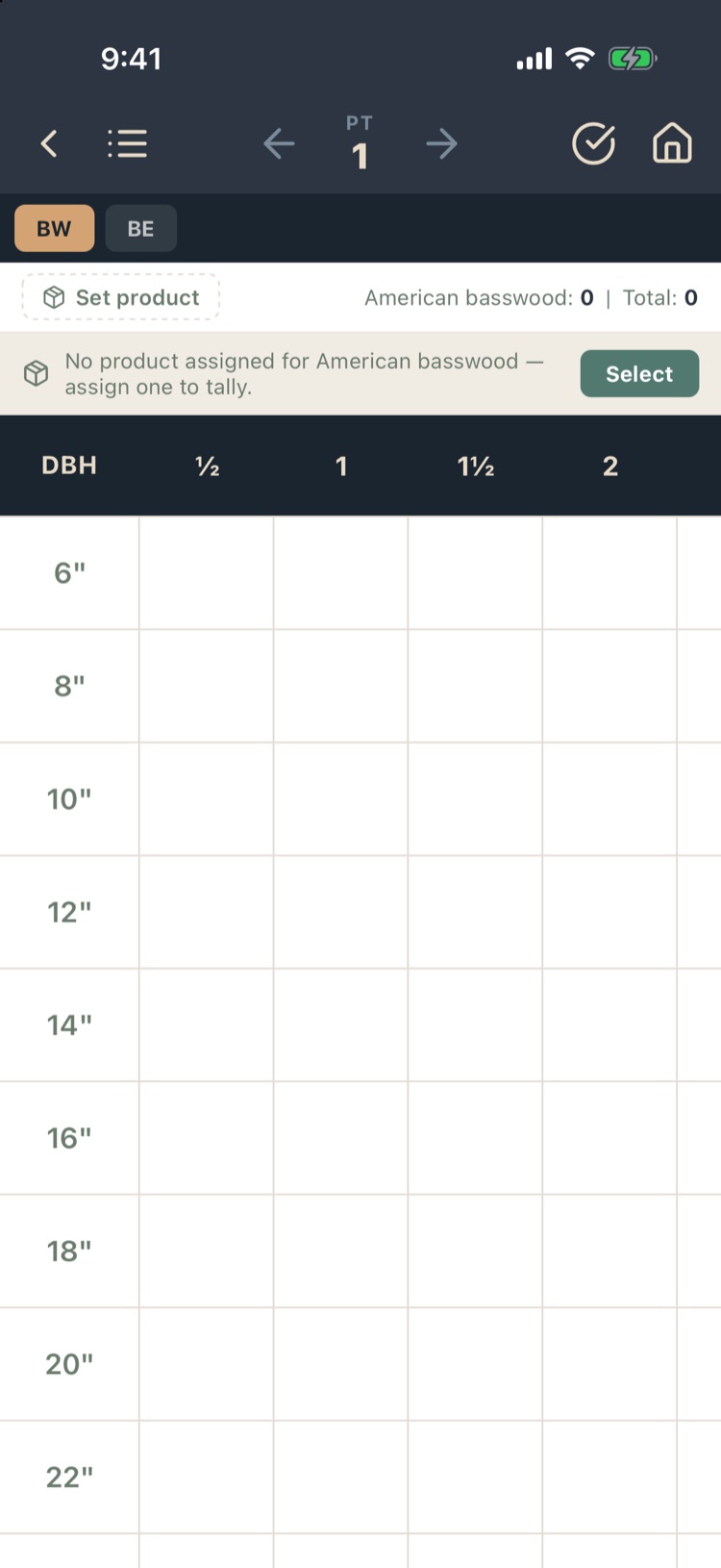
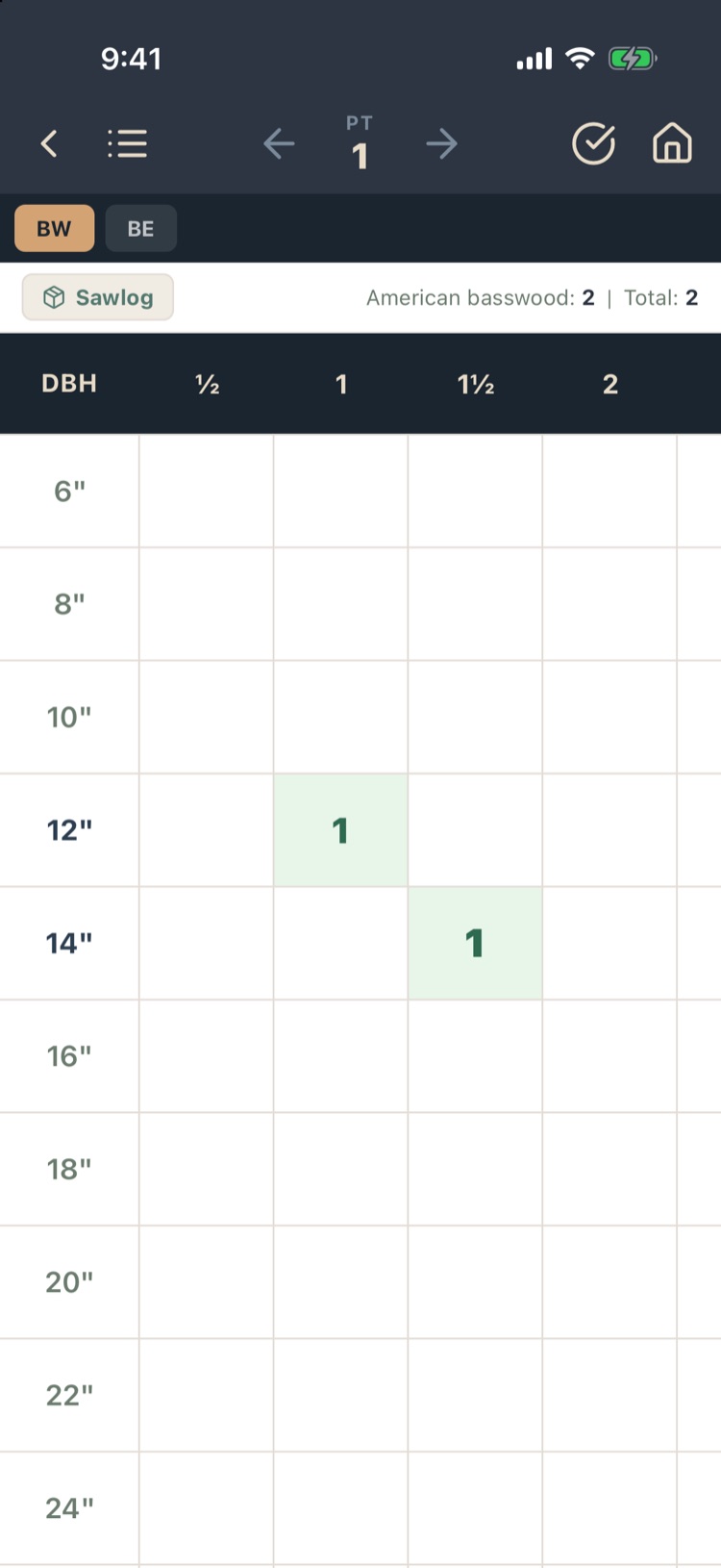
Dot Tally replaces the step-by-step panel with a grid for the species you pick at the top: DBH classes down the side, heights across the top. Tap a cell once to add a tree; touch and hold a cell to remove one. The number in the cell is the count. Use it for fast inventory where you don’t need each tree’s fields.
- One product per species. Before a species takes trees, choose its product: tap Select on the yellow notice, or the product box above the grid. Once a species has dots on a plot, its product is locked for that plot; clear its dots to change it.
- Settings (Tree Measurement Method): DBH Increment 1" or 2"; Height Type half logs, full logs, 5' or 10' steps; Min DBH; and Max Length Cut Log, which sets the length of one log column.
- Pinch to zoom the grid. The counts at the top show this species’ trees and the plot total.
Every dot is saved as a tree with that species, DBH, height and product, so reports treat it like any other tree.
Every species in your pick list gets a tab above the grid. Keep the list to the species you actually tally (Chapter 10). You can use an “Other” species as a catch-all for less important or non-commercial species.
5.11Pulp Clicker
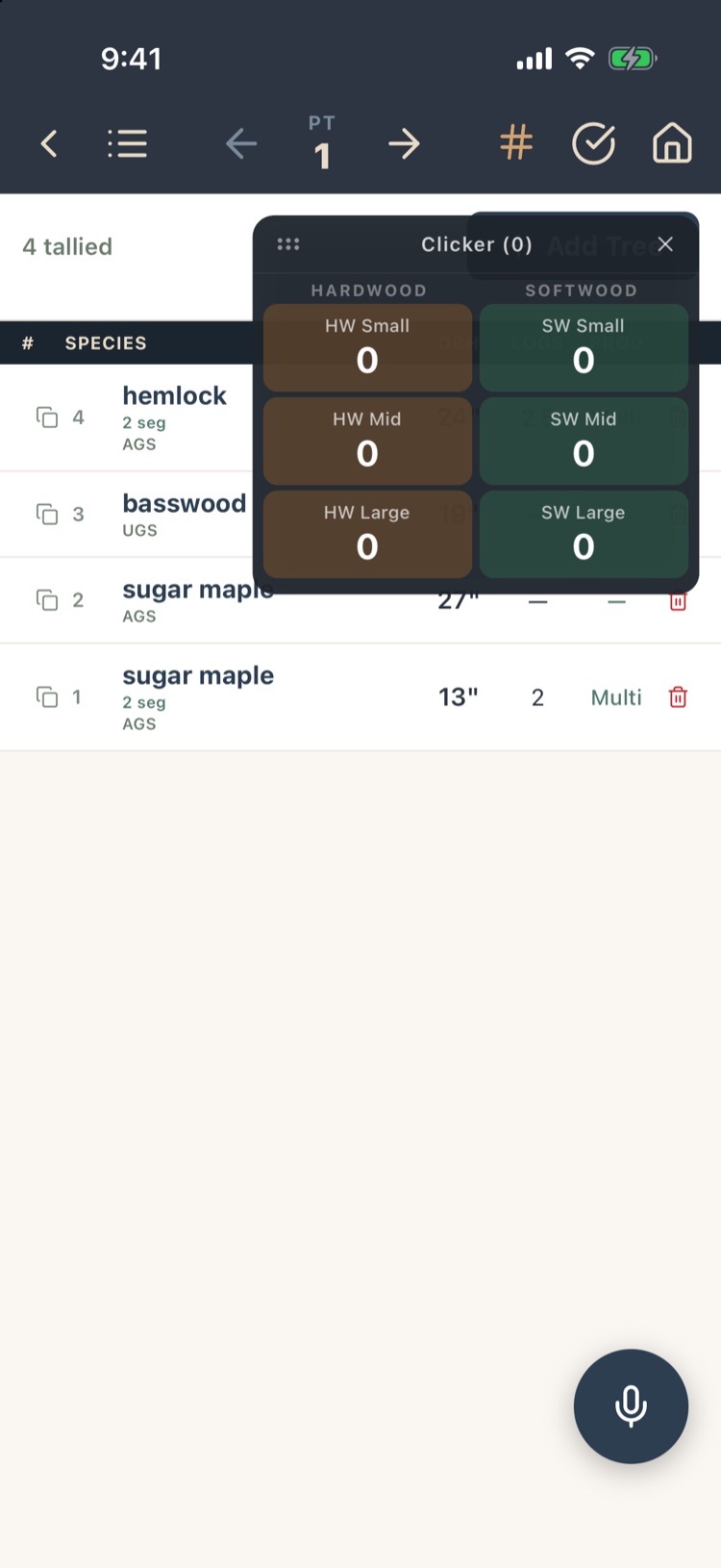
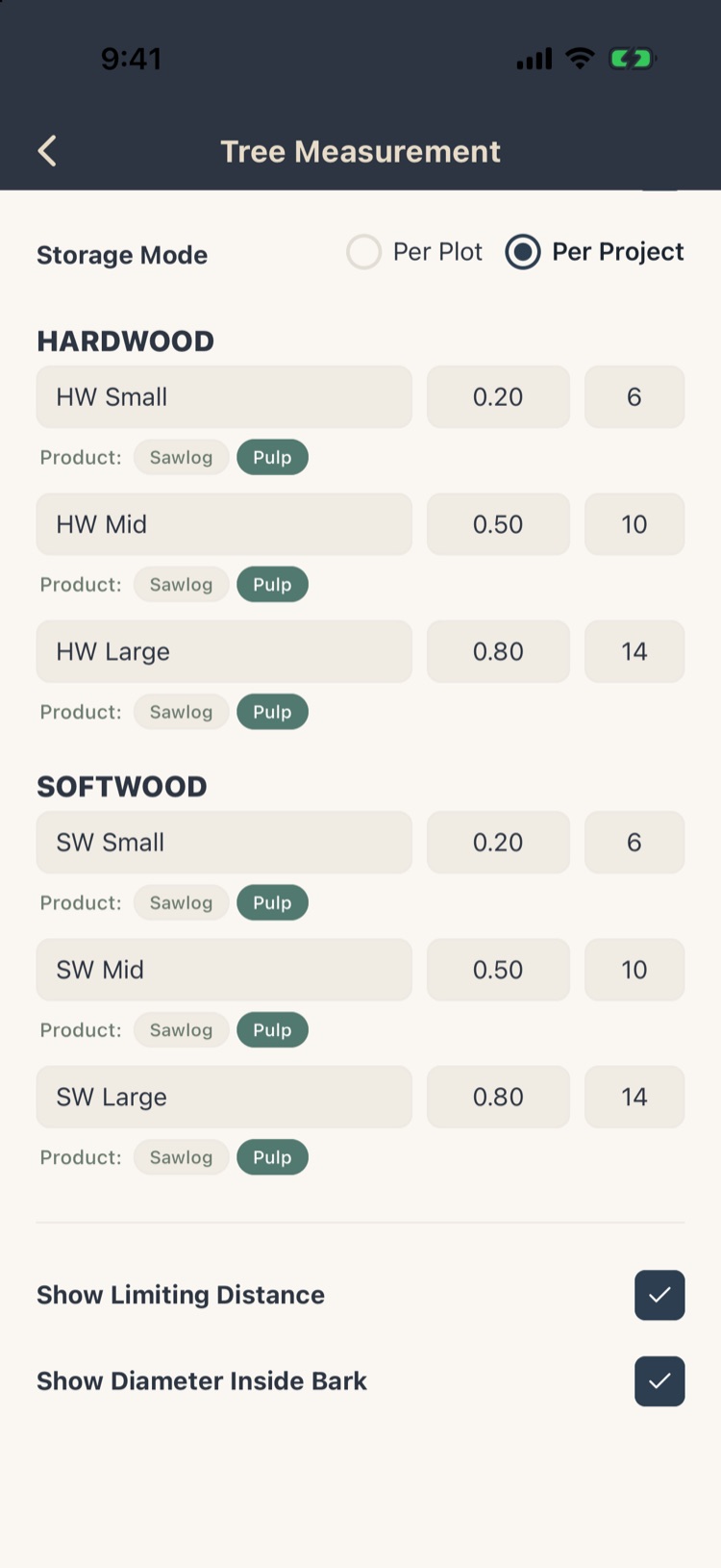
The Pulp Clicker counts pulpwood stems with one tap each. Turn it on under Settings › Tree Measurement Method › Enable Pulp Clicker, and the # button appears on the tally bar.
- Six counters: Small, Mid and Large for hardwood and for softwood.
- Each counter has a label, a volume per stem (the first number, in the product’s unit), a representative DBH (the second number) and a product, all set below Enable Pulp Clicker.
- Each click adds a tree with that volume, counted in reports like any other tree.
- Storage Mode: counts kept Per Plot or Per Project.
Drag the popover by its handle; tap × to close it.
5.12Voice Tally Max
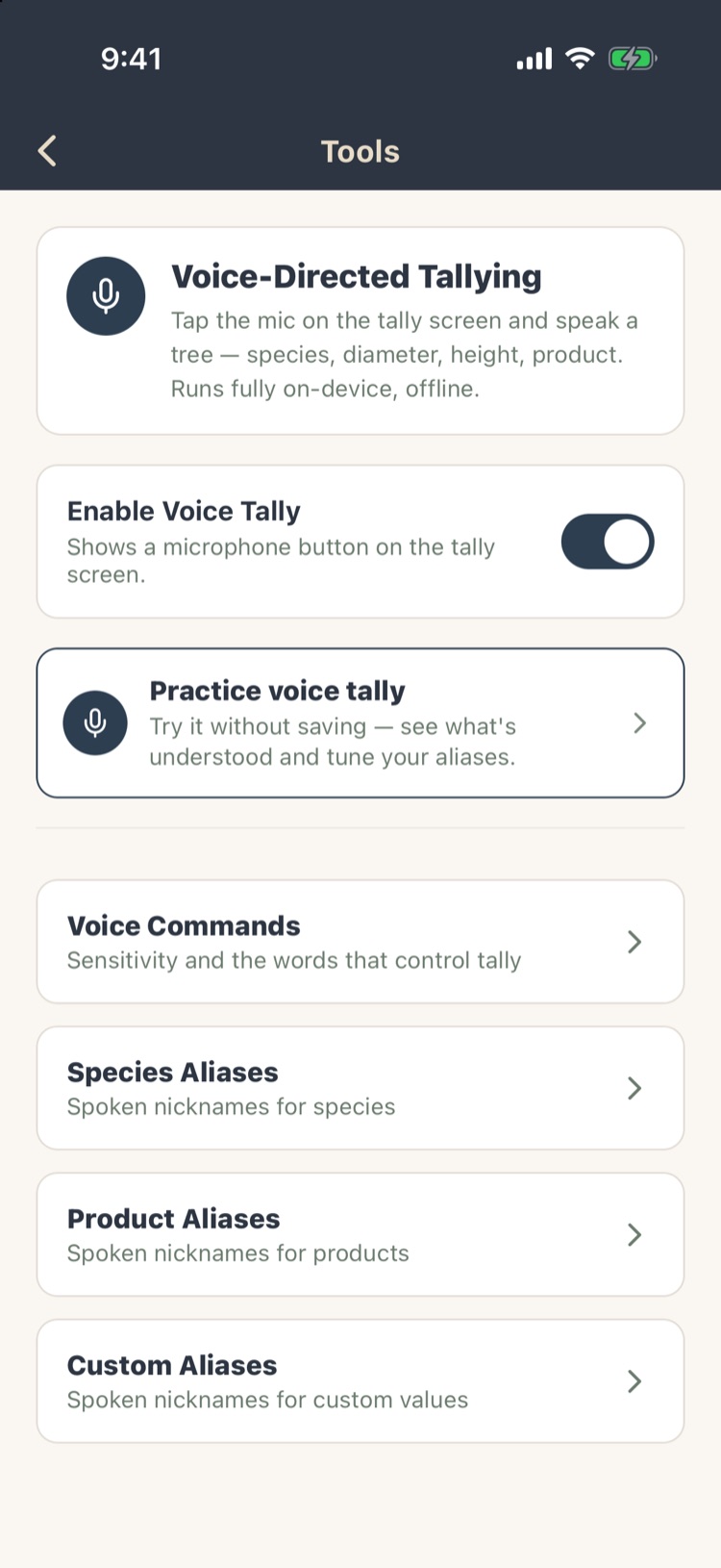
Voice Tally lets you speak a tree instead of tapping it. Speech is recognized on the phone, so it works offline. Turn it on under Settings › Voice Tally; a microphone button appears on the tally screen.
- Tap the microphone.
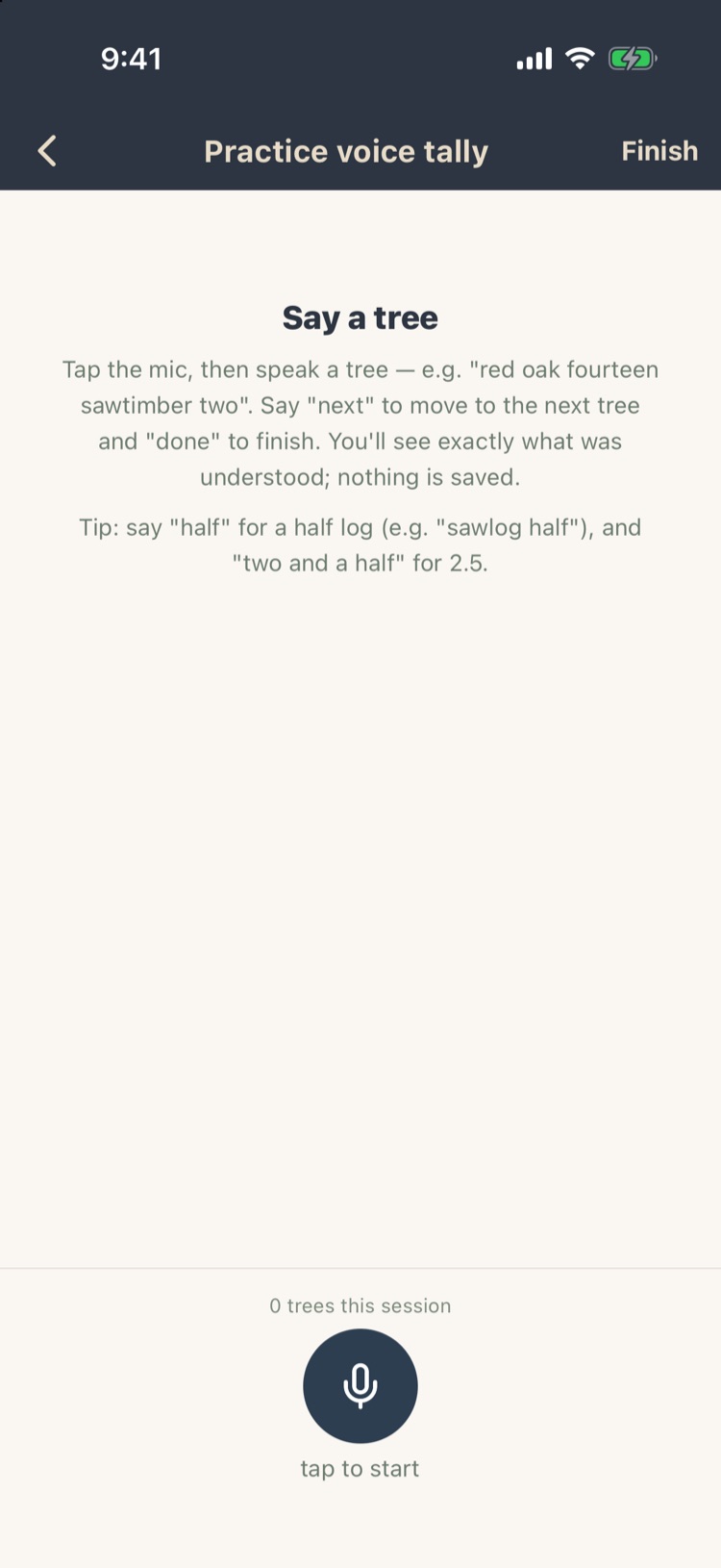
- Say the tree: species, diameter, then products and heights. For example, “red oak fourteen sawtimber two”. Say half for a half log (“sawlog half”, “two and a half”).
- Finish with a command word. “Next” saves the tree and keeps listening; “done” saves it and stops; “cancel” throws it away and starts again.
A banner shows what was recorded, with an Undo button. Anything it couldn’t understand is left for you to finish by tapping.
- Voice Commands: how sensitive the listening is, and your own words for next, done and cancel.
- Species, Product and Custom Aliases: nicknames you say for species (“hard maple”), products and field answers.
- Practice voice tally: try it without saving anything. It shows what it heard and how it understood each part, and suggests aliases for words it missed.
5.13Finishing a plot
When the last tree is in, tap ✓ on the tally bar. Before marking the plot done, the app checks every tree and lists up to five problems under Validation Issues: a product without a height, or a required field left blank, for example. Tap Fix Now to go back to the trees, or Continue Anyway.
- Zero tally. A plot with no trees in it is still a plot: mark it done so it counts as zero in per-acre figures. It shows a Zero Tally Plot banner, and Zero tally on the Plots list.
- Reopen a finished plot by tapping ✓ again.
- Leaving unfinished. Moving to another plot or leaving the tally screen from a plot that isn’t done asks Is this tally complete? (section 5.1).
A plot counts when it has trees or is marked done. A plot with no trees that isn’t marked done is treated as not yet visited and left out.