Sharing, organizations and sync
Join forces with any Forest Metrix user, inside or outside your organization. Understand how everyone’s work comes together through sync, and use the Office pages in a browser.
12.1Sharing a project
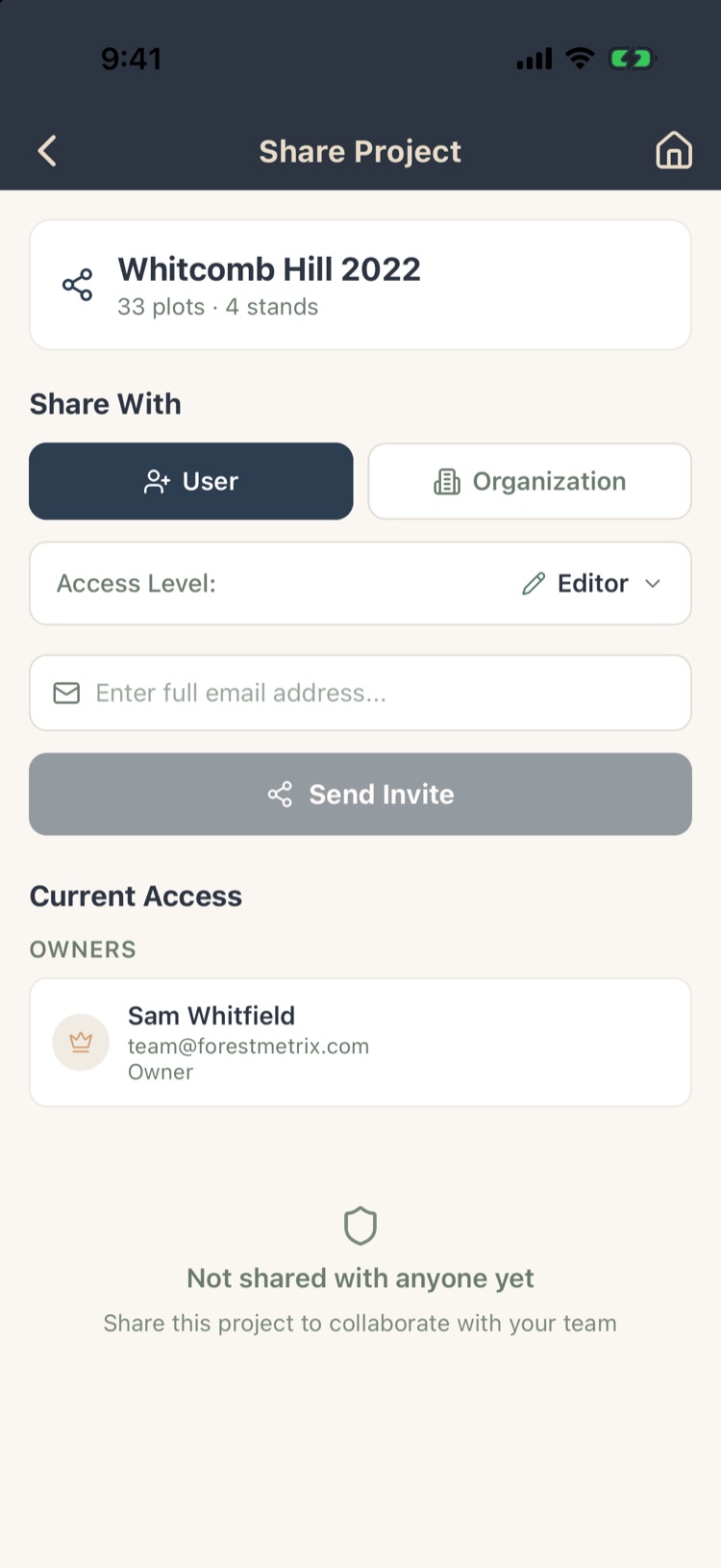
Open the project and tap Import/Export › Share This Project, or on the Projects screen tap Sharing › Share a Project and pick it.
- Choose User to share with one person, or Organization for everyone in one of your organizations.
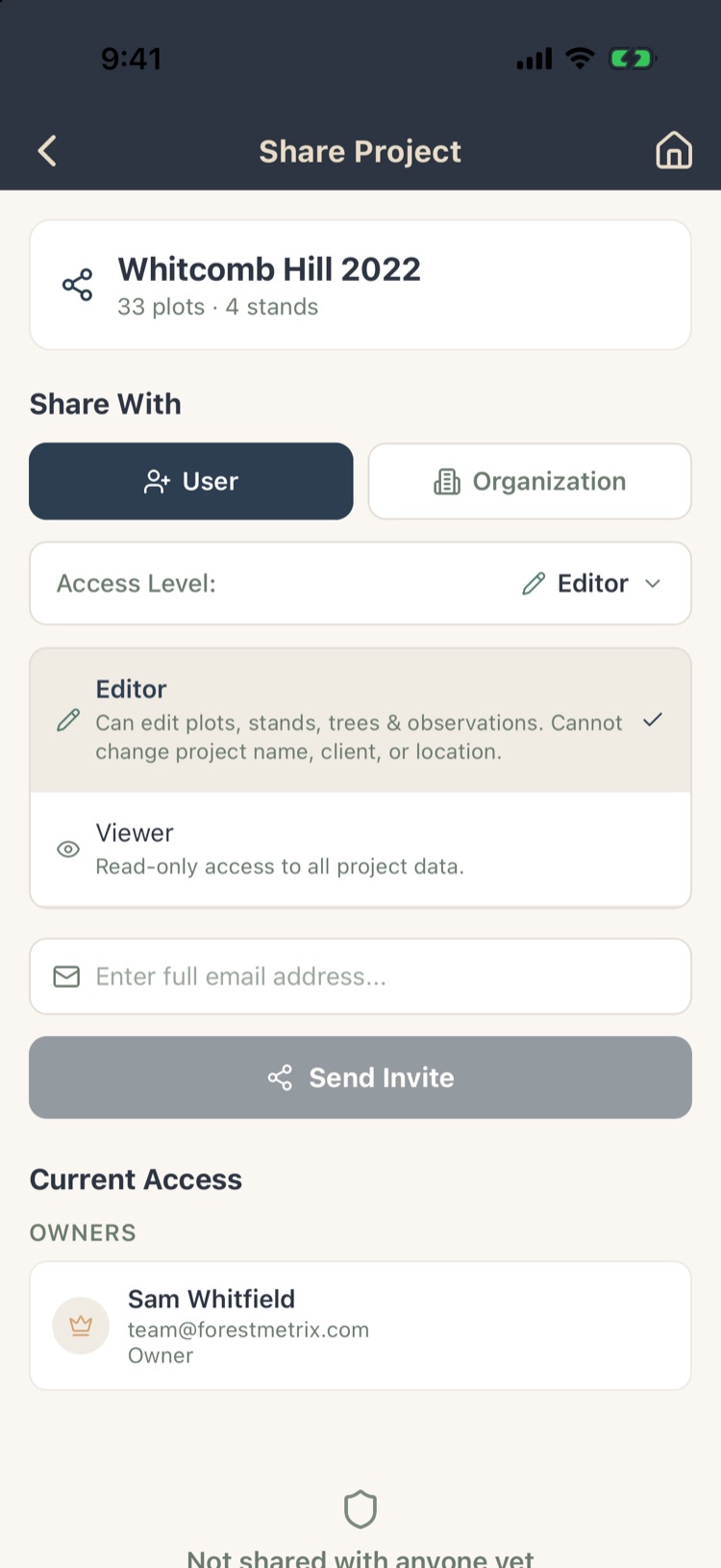
- Choose the Access Level:
- Editor: can add and edit plots, stands, trees and observations. Can’t change the project’s name, client or location.
- Viewer: can see everything, change nothing.
- Type their Forest Metrix sign-in email and tap Send Invite.
Current Access lists the owner and everyone the project is shared with. Remove anyone at any time; the project then becomes read-only on their devices, with a banner.
12.2Projects shared with you
Projects others share with you appear on your Projects screen alongside your own. If one hasn’t appeared, tap the refresh arrow at the top of the Projects screen.
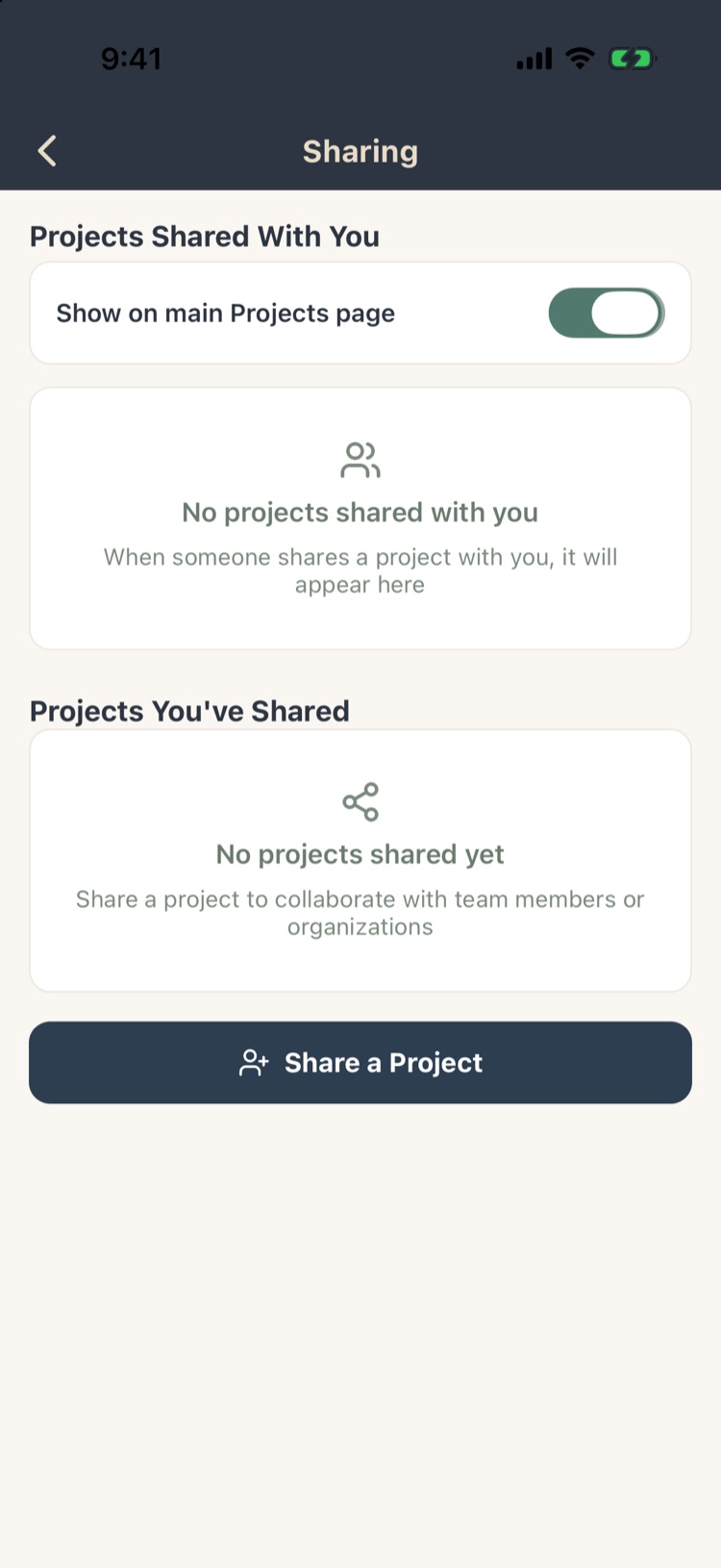
Sharing on the Projects screen lists:
- Projects Shared With You, with Show on main Projects page to keep them out of your main list if you prefer.
- Projects You’ve Shared, and with whom.
To make your own copy of a shared project, use Save Working Copy (Chapter 2, section 2.4).
12.3Organizations
An organization is a group (your company or crew) that you can share projects and templates with in one step. Manage it under Settings › Profile, Organizations, Subscriptions & Devices › Your Organizations.
- + Create Organization and give it a name. You’re its owner.
- Invite members by email and give each a role:
| Role | Can |
|---|---|
| Owner | Everything, including deleting the organization. |
| Admin | Manage members and the organization’s projects. |
| Cruiser | Collect and edit data on the organization’s projects. |
| Viewer | See the organization’s projects; change nothing. |
Organizations are separate from seats: who may use Forest Metrix is managed on your account page (Chapter 13).
12.4How sync works
- Phone first. On a phone or tablet everything is saved on the device first, so you can cruise all day without signal.
- Uploads: changes upload about 15 seconds after you stop editing whenever you’re online, and again as soon as you’re back in coverage.
- Downloads: changes made on other devices to the project you have open arrive about every minute. Other projects update when you open them.
- New device: when you sign in on a new phone, your projects are restored from the cloud.
- The web app works from the cloud and needs a connection.
The strip above Project Home’s bottom bar shows where the project stands: Synced, Syncing, or Sync pending (Chapter 2, section 2.8).
12.5Working on the same project
- Each edit is recorded on its own, field by field. Two cruisers working different plots, or different fields of the same plot, don’t overwrite each other.
- If two people change the same field of the same record, the most recent change is normally the one kept, so agree who edits what.
- Deleted records stay deleted; a device that syncs later won’t bring them back.
- New fieldwork on a project someone archived in the office un-archives it, so field data never disappears into the archive.
Give each cruiser their own plots or stands. Plot numbers are shared across the project, so if two people add plots by hand at the same time, agree number ranges first (for example, 100s and 200s).
12.6The Office pages
The Office pages are Forest Metrix in a web browser, for work at a desk. Tap Office on the Projects screen, or go to app.forestmetrix.com/office and sign in with the same login.
- Clients: your landowners and clients, with their contacts, parcels and projects.
- Reports: the Vermont UVA management plan, built from a cruise and shared with everyone on the project.
- Settings and Account Management.
Projects show up here, with their latest counts, once they sync from the field.
Chapter 15 covers the Office pages in full.