Settings
Where every setting lives: what belongs to the project, what belongs to your account, and what stays on this phone, plus the settings that don’t have a home in another chapter.
11.1The Settings screen
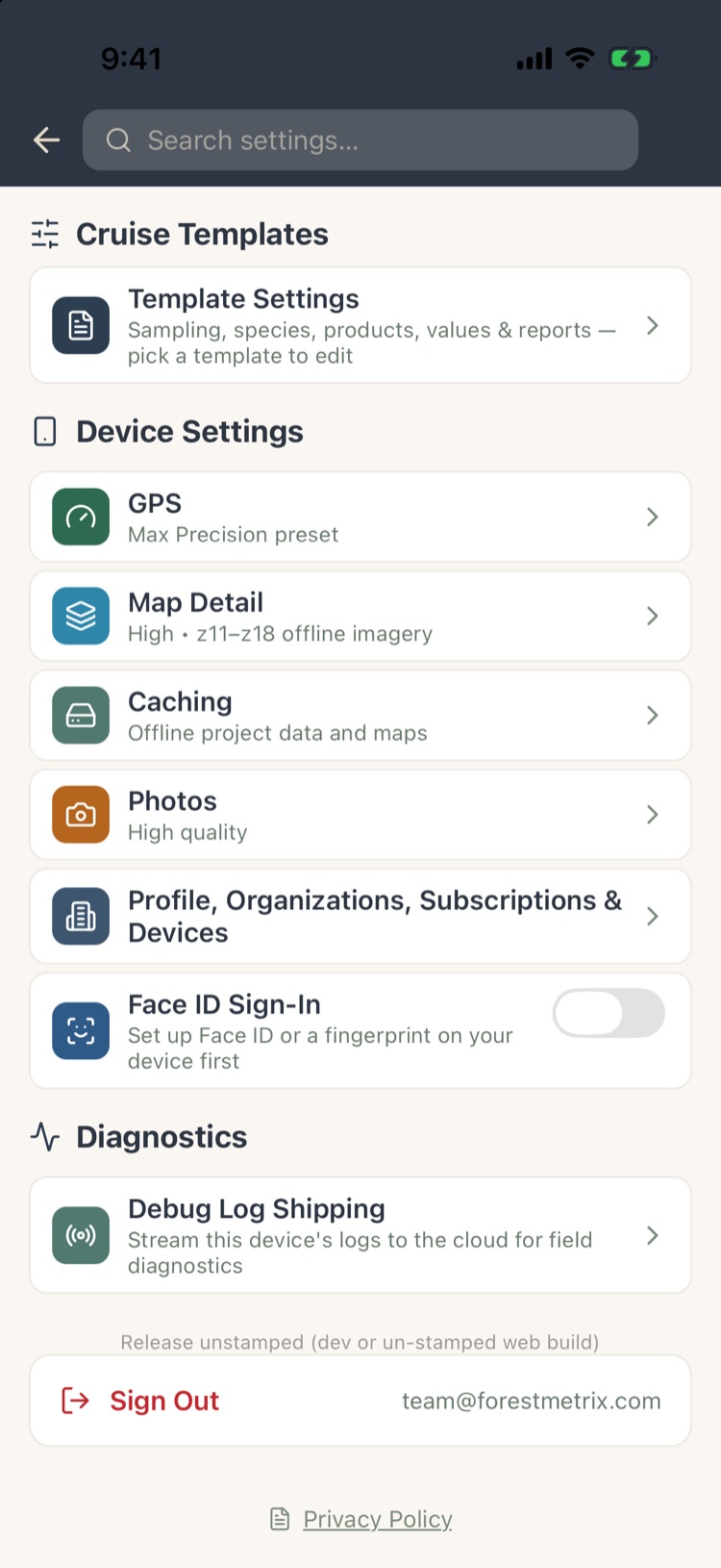
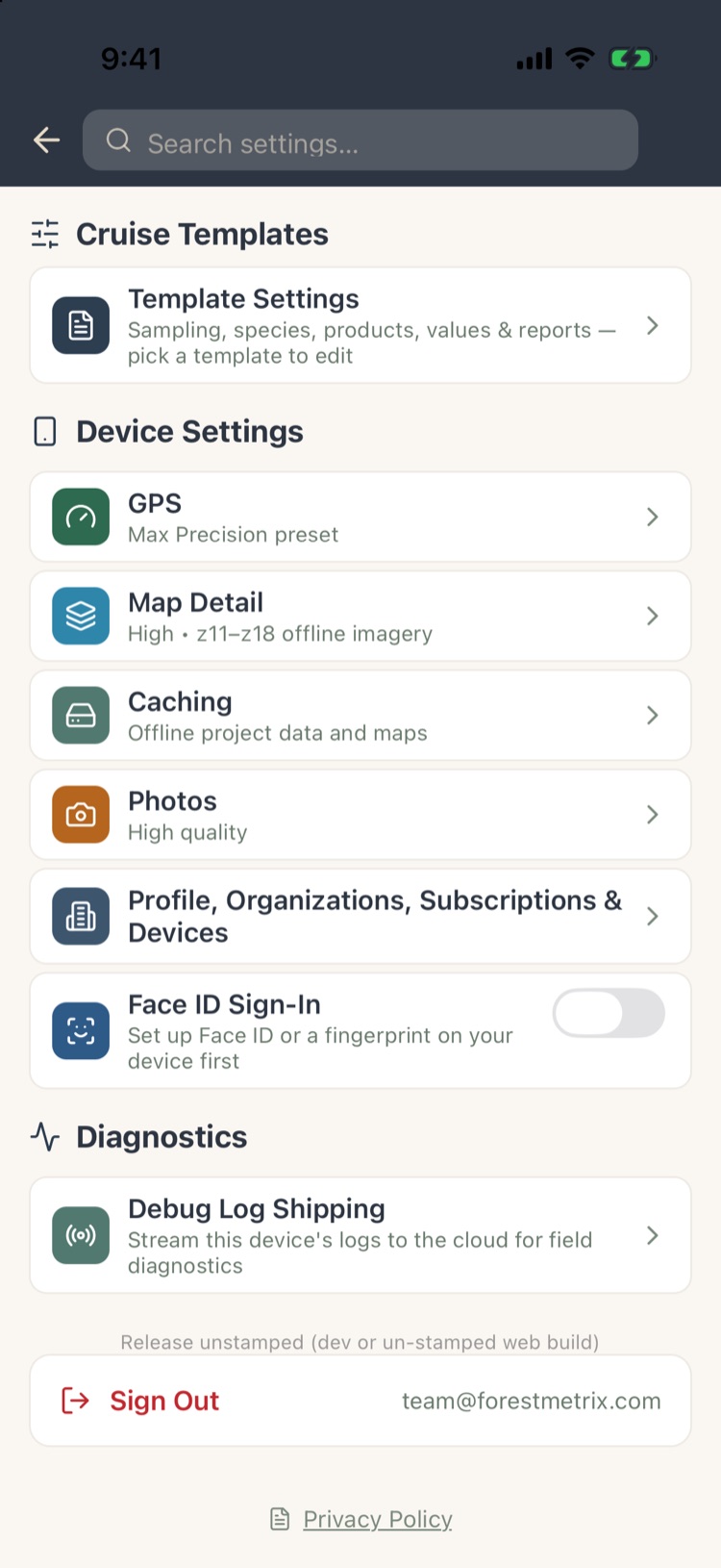
Tap Settings at the bottom left of Project Home or the Projects screen. Type in the search box at the top to jump to any setting.
- From Project Home: Project Settings for the open project, then Device Settings.
- From the Projects screen: Cruise Templates › Template Settings (Chapter 10), then Device Settings.
On an iPad the list and the setting you’re editing sit side by side.
Each row shows its current value under its name, such as Call Products by Heights · 16' Logs, so you can check a setup at a glance.
11.2Project settings at a glance
These belong to the project (or template) and travel with it to every device and to anyone it’s shared with.
| Setting | What it controls | See |
|---|---|---|
| Sampling Method | Templates only: the default method and BAF for new projects. | 10.4 |
| Tree Measurement Method | Tally method, height and DBH entry, tenths, Max Length Cut Log, Pulp Clicker, limiting distance, DIB. | 5.2 |
| Custom Tree Data | Your tree fields, defect, total height, manual tree number. | 10.8 |
| Tree Species | Pick list, favorites, form class, custom names, FIA import. | 10.5 |
| Products | Products, volume rules, specifications, topwood, taper, custom volume tables. | 10.6 |
| Values | Stumpage prices. | 10.7 |
| Plot Optional Data | Regeneration, snags, CWM, plot fields, checklists, tables. | 6.9 |
| Stands Optional Data | Stand fields. | 10.9 |
| Voice Tally | Voice Tally on or off, commands, aliases, practice. | 5.12 |
| Other | Confidence level, sampling-error goal, sounds, state options, limiting-distance reference. | 11.3 |
| Report Settings | Report style, font, units, products shown, logo and footer. | 8.12 |
Once a project has tallied trees, its tally method and height entry are locked, so a project never mixes two ways of recording trees.
11.3Other: statistics, sounds and state options
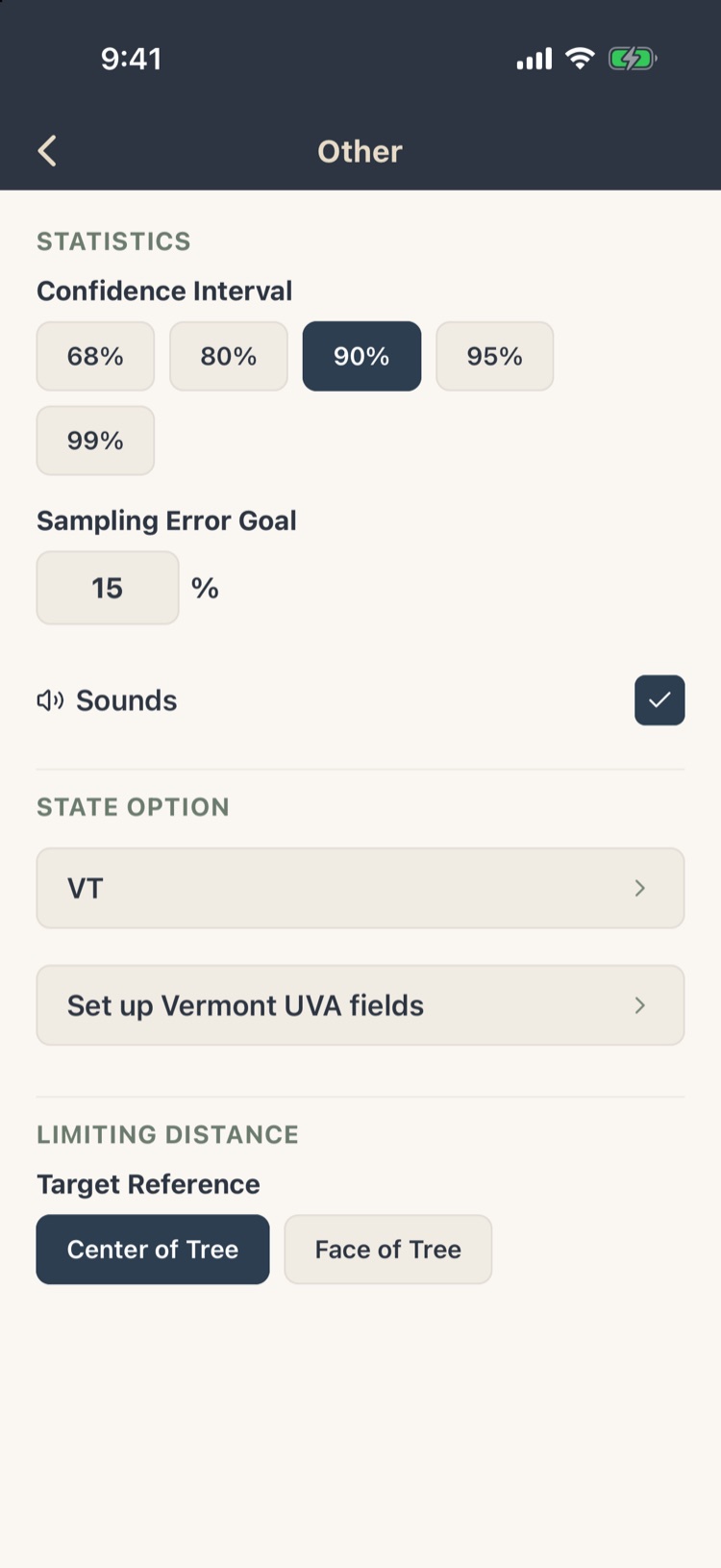
- Confidence Interval: 68%, 80%, 90% (the default), 95% or 99%. Sampling error and confidence limits use it (Chapter 8). 68% is the NRCS standard.
- Sampling Error Goal: the error you’re aiming for, 15% by default. Sampling Analysis says how many more plots you’d need to reach it.
- Sounds: the beep on each saved tree. The vibration stays.
- State Option: state-specific features. For Vermont, Set up Vermont UVA fields adds the stand and plot fields the Use Value Appraisal program’s forest management plan needs.
- Limiting Distance › Target Reference: whether you measure to the Center of Tree or the Face of Tree; the limiting-distance calculator adjusts accordingly (Chapter 5, section 5.7).
11.4Device settings
These belong to this phone or tablet only. Your other devices keep their own.
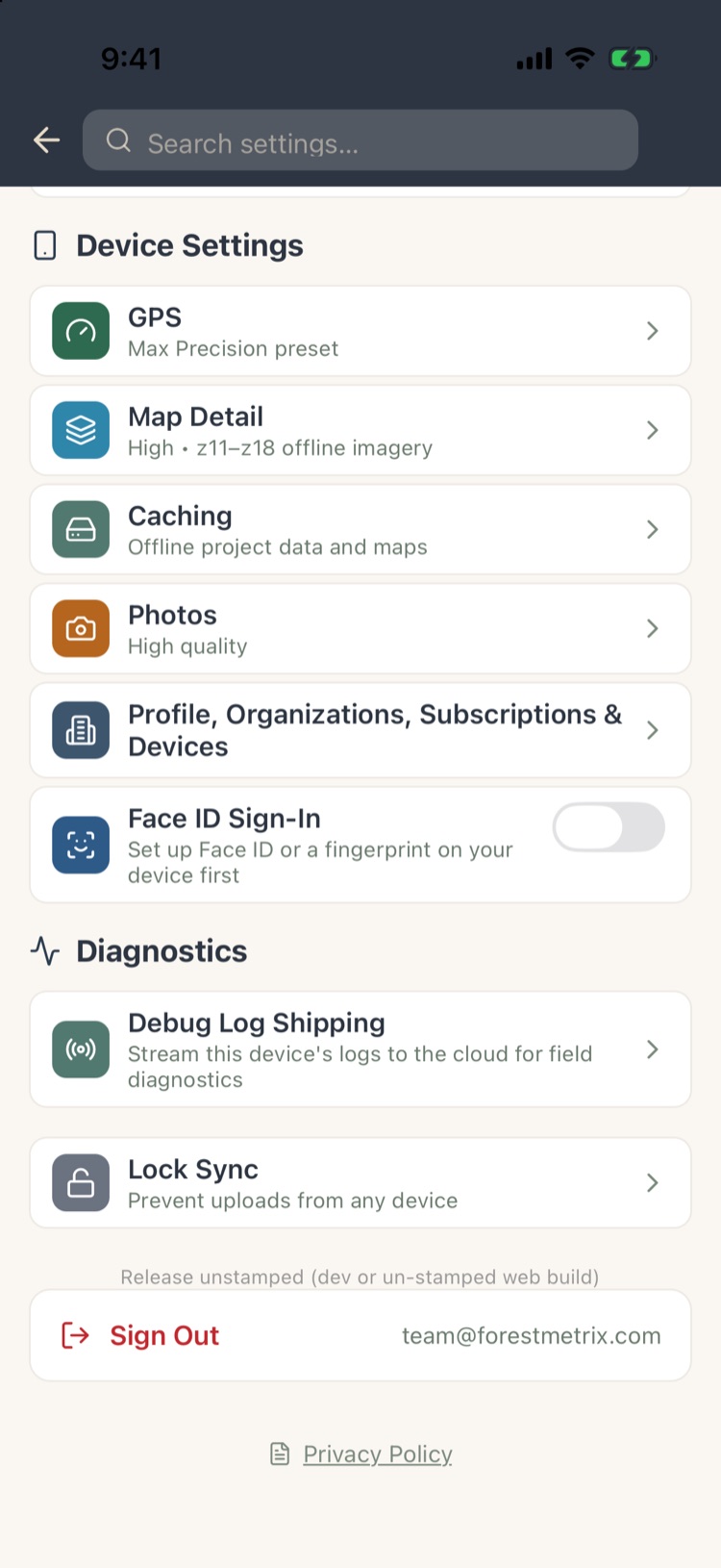
- GPS Pro: accuracy and battery presets, averaging (Chapter 7, section 7.9).
- Map Detail Pro: offline map resolution and default imagery (Chapter 7, section 7.7).
- Caching Pro: what’s stored on this phone (Chapter 7, section 7.7).
- Photos: section 11.5.
- Profile, Organizations, Subscriptions & Devices: Chapters 12 and 13.
- Face ID Sign-In: section 11.6.
- Diagnostics: section 11.7.
At the bottom: Sign Out, the account you’re signed in as, and the Privacy Policy.
11.5Photos
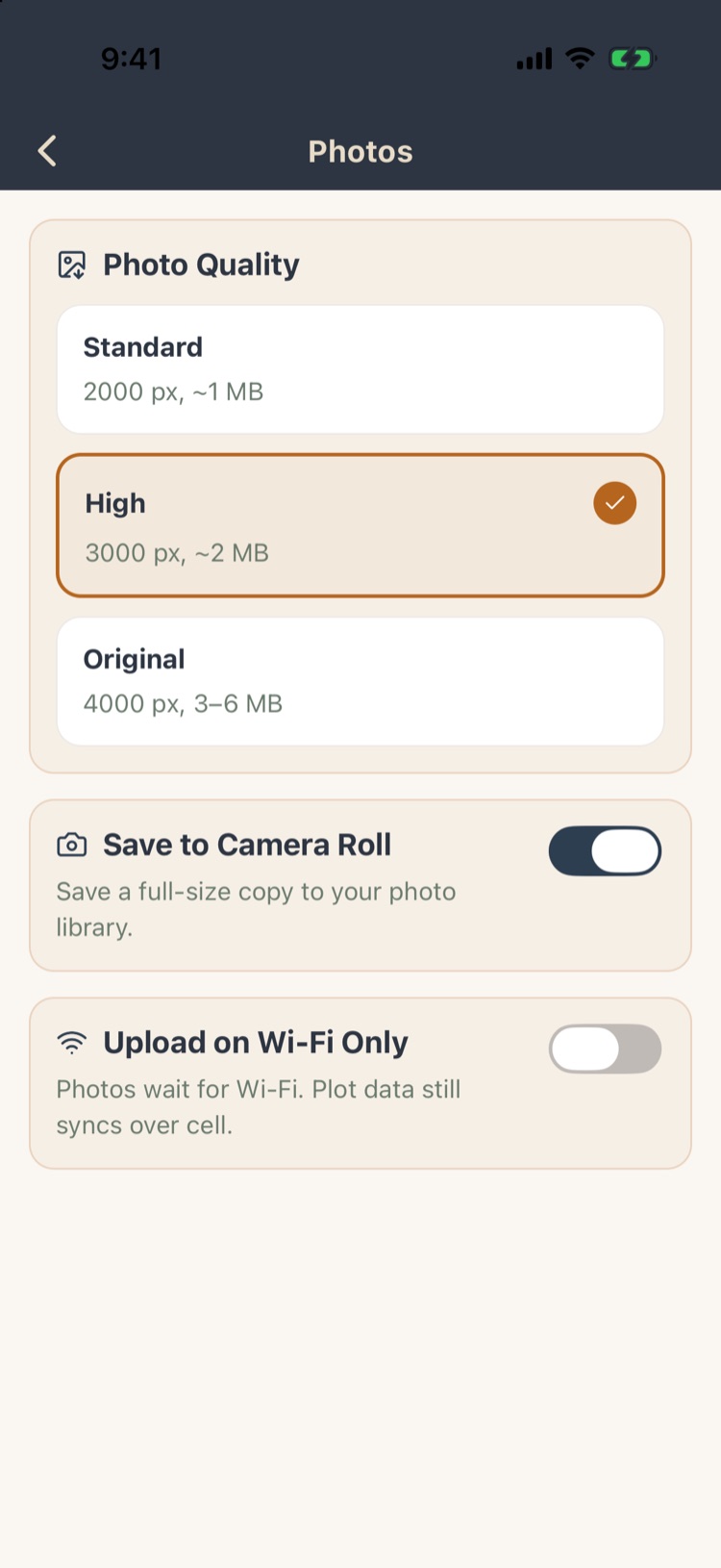
- Photo Quality: Standard (2000 pixels on the long side, about 1 MB), High (3000 px, about 2 MB), or Original (4000 px, 3–6 MB). Higher quality shows more detail when zoomed, but uploads take longer and use more storage.
- Save to Camera Roll: also keep a full-size copy in your phone’s photo library.
- Upload on Wi-Fi Only: photos wait until you’re on Wi-Fi. Plot data still syncs over cell.
These apply to photos you take from now on, on this device.
11.6Face ID and signing out
- Face ID Sign-In (or fingerprint on supported devices): sign in with your face instead of your password. Set up Face ID on the phone first, then turn this on.
- Sign Out: signs you out of this device after you confirm. Your projects stay on the phone and are there when you sign back in.
11.7Diagnostics and Lock Sync
- Debug Log Shipping: sends this device’s logs to Forest Metrix so support can diagnose a problem. Turn it on only when support asks; turn it off afterwards.
- Lock Sync: stops every device from uploading changes to the open project, for example while you hand-correct a finished cruise in the office and don’t want stray field changes. Unlock it to resume.
For problems, see Chapter 14.