Account and devices
Your login, your seat on the account, your subscription, and your devices.
13.1Your account and seats
Accounts, seats and billing are managed on the account page at account.forestmetrix.com, not in the app (Chapter 1, section 1.1). There you, or your account administrator, can:
- add people to the account: create their login, or send an invitation so they set their own password;
- give out seats. Being on the account and holding a seat are separate, so you can add people first and assign seats as they free up;
- remove someone, which frees their seat. Their synced projects stay with the account.
The app checks two things when you sign in: that the account is active, and that you hold one of its seats. If either is missing it shows a No active license screen. The most common cause is a seat reassigned to someone else. Work already on the device isn’t lost, and syncing resumes once a seat is restored. The app picks up seat changes on its own; the refresh arrow on the Subscriptions & Devices card checks right away.
13.2Profile and password
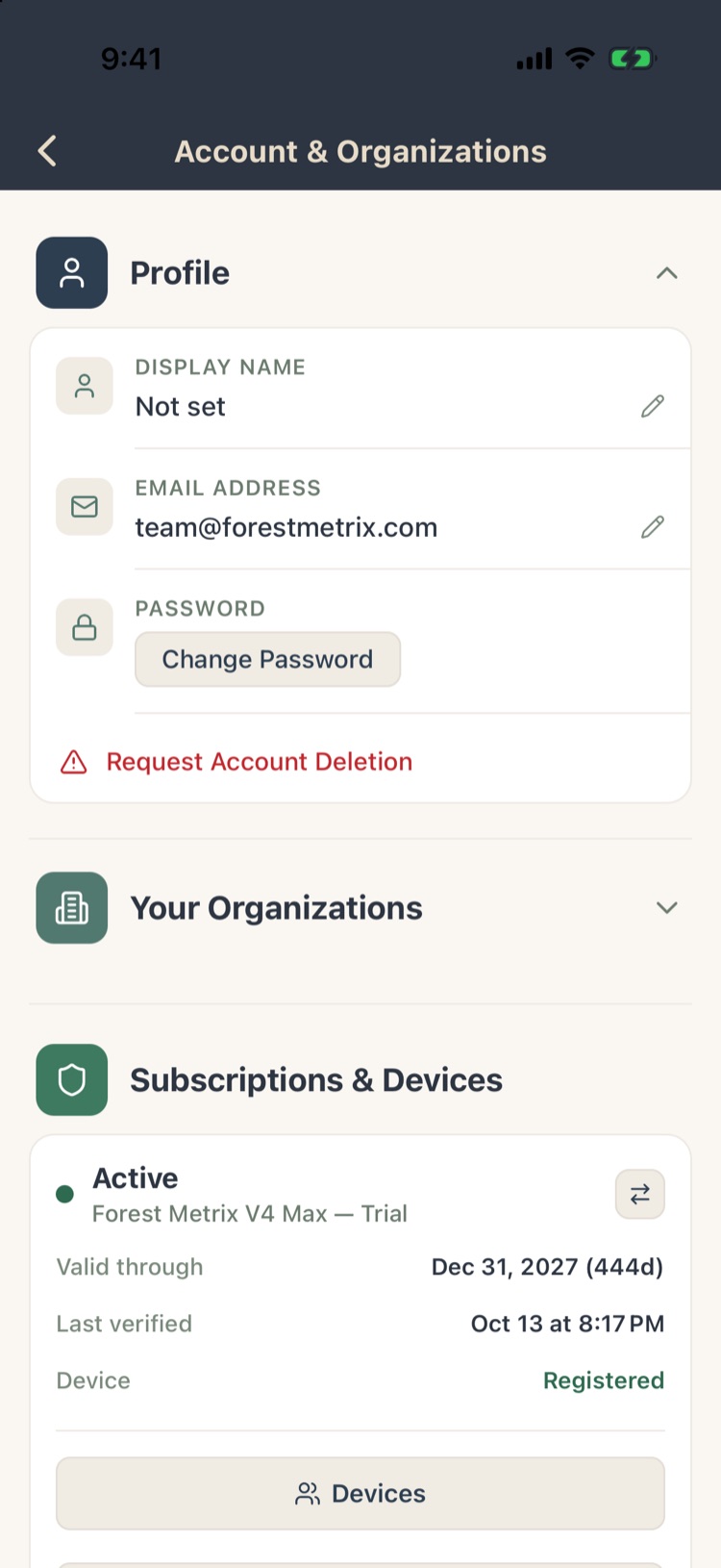
Settings › Profile, Organizations, Subscriptions & Devices opens Account & Organizations.
- Display Name: how you appear to people you share with. Tap ✎ to change it.
- Email Address: your sign-in email.
- Change Password.
- Request Account Deletion (section 13.7).
The same login works in the app, on the Office pages and on the account page. Forgot your password? Tap Forgot password? on the sign-in screen and follow the link in the email (Chapter 1, section 1.4).
13.3Subscription
The Subscriptions & Devices card shows your license: whether it’s active, the version (Basic, Pro or Max), the date it’s valid through, when it was last checked, and whether this device is registered. ⇄ refreshes it.
Clean Up Unused Photos removes photo files left in cloud storage after their photos were deleted. It doesn’t touch any photo that’s still in a project.
To change your version, add seats or update billing, use the account page.
13.4Devices
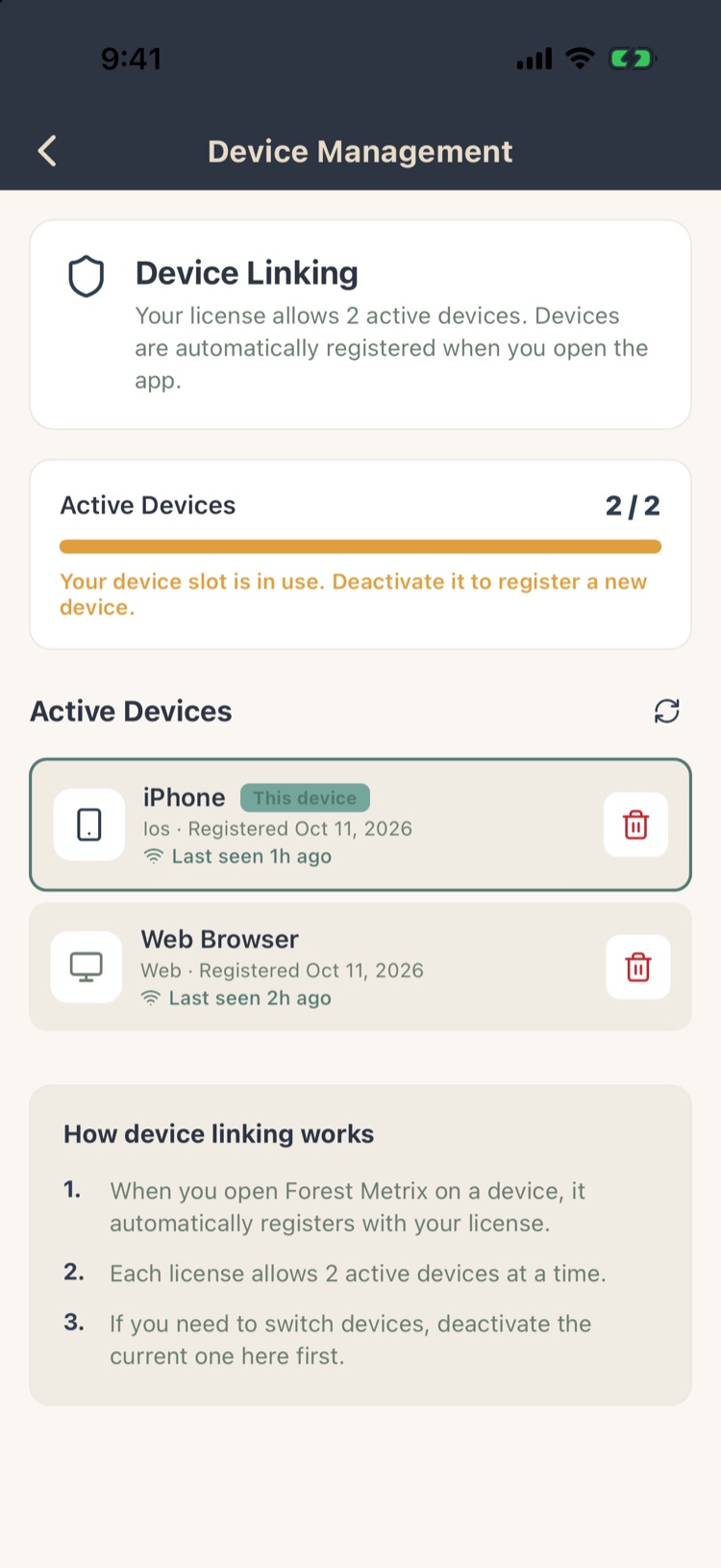
Each phone, tablet or computer registers itself the first time you open Forest Metrix on it. Tap Devices on the Subscriptions & Devices card to see them.
- A license allows 2 active devices, for example your phone and your office computer’s browser.
- Each device shows its type, when it registered and when it was last seen. This device marks the one in your hand.
- To use a new phone when both slots are full, delete an old device here first, or from the new device when it asks.
If your projects don’t appear after freeing up a device, tap the refresh arrow at the top of the Projects screen.
13.5Signed in on another phone
You can be signed in on one phone or tablet and one computer at a time. If you sign in on a second phone:
- the new phone shows This login is in use and takes over after 30 seconds, or straight away with Take over now;
- the first phone then shows Signed in elsewhere and stops syncing until you sign in there again.
Work on the first phone that hadn’t uploaded stays on that phone; sign back in on it to upload it.
13.6Trials and versions
- A free trial gives one person full Max access for 14 days. No payment method is collected and nothing is charged.
- When a trial ends, your projects stay stored and downloadable for a week. Subscribe on the account page to keep working.
- Features marked Pro or Max in this manual need that version or higher. During a trial, Compare Versions on Project Home shows what each version includes.
13.7Deleting your account
Request Account Deletion asks Forest Metrix to delete your login and your data. Export anything you want to keep first (Chapter 9). If you’re on a company account, your administrator may need to remove you from it instead; your synced projects then stay with the company.