The Office pages
Forest Metrix at your desk: keep your clients’ contacts and properties in order, bring in a cruise from a spreadsheet, and write a Vermont UVA management plan that fills itself in from the field data.
15.1The Office pages
The Office pages run in a web browser on your computer. They work alongside the field app: the field app collects the data and lays out the job (on the web too, Chapter 3), and the Office pages handle clients and paperwork.
To open them, do one of these:
- Tap Office on the Projects screen of the field app.
- Click Web Console on the account page (Chapter 1).
- Go to app.forestmetrix.com/office and sign in with your usual login.
The menu down the left side:
| Item | What it opens |
|---|---|
| Clients | Your clients and their projects (section 15.2). The Office pages open here. |
| Reports | The management plans (section 15.5). |
| Settings | Your login and license details (section 15.6). |
| Account Management | The account page, already signed in (Chapter 13). |
| Field App | Forest Metrix itself, in the browser. |
| Sign out, Support | Sign out of the Office pages, or open the ways to reach us. |
Everything recorded in the field shows up here once it syncs (Chapter 12).
15.2Clients
The Clients page lists everyone you work for, with their contact, email and mobile number. Click an email address to write to it, or click Details to open the client (section 15.3). Type in the search box to find a client by name, contact or email.
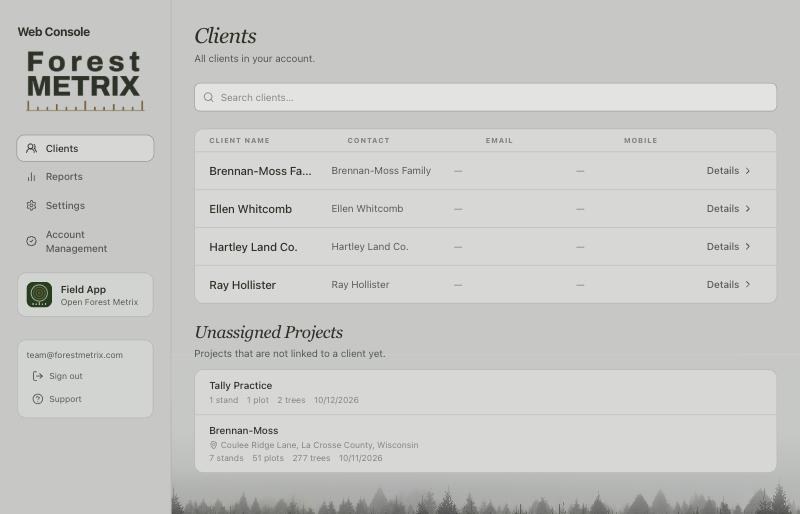
Unassigned Projects lists your projects that don’t belong to a client yet.
15.3A client’s page
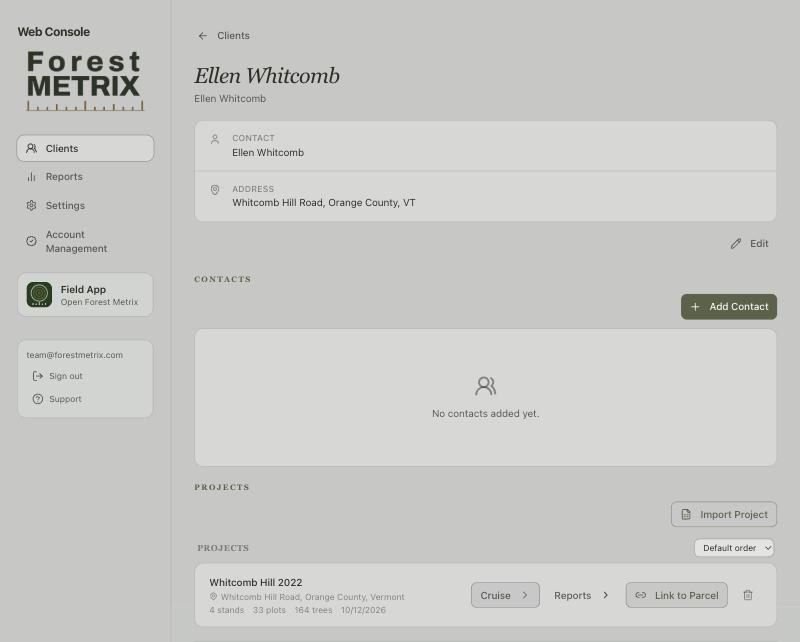
A client’s page holds their details, the people you deal with, and every project you’ve done for them.
Details
Edit, under the details card, changes the client’s name, the main contact name and notes.
Contacts
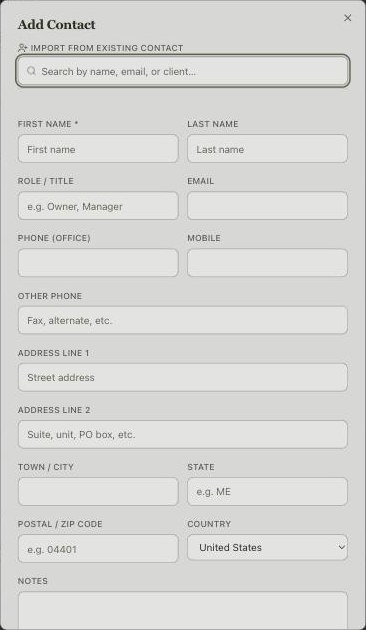
A client can have several contacts: the owners, a forester, an estate lawyer. Click Add Contact.
- First Name is the only required field. There’s room for a role, email, three phone numbers, a full address and notes.
- Import from existing contact at the top copies someone you already have on another client, for a person who owns more than one property.
- Tick Primary for the person to contact first.
On the list, the star makes a contact primary, the pen edits them, and the bin deletes them after asking.
Projects
Each of the client’s projects shows its location, its stand, plot and tree counts and when it last changed. Sort them in your own order or Most recent first.
- Cruise opens the project in the field app, in a new browser tab. On a phone it opens the installed app.
- Reports opens the project’s Vermont UVA plan in a new tab (section 15.5).
- Link to Parcel records which property the project was on (below).
- The bin deletes the project and everything recorded in it. It asks first. Only the project’s owner sees it.
Parcels
A parcel is one of the client’s properties: a name, address, town, acreage and the tax parcel number. Linking projects to parcels keeps a property’s history together when you cruise it again years later.
- Link to Parcel on a project picks one of the client’s parcels or creates a new one.
- Once a project is linked, the button reads Parcel. Clicking it unlinks the project after asking; the project and the parcel are both kept.
- When a client has parcels, Add Parcel adds another, and each parcel can be edited or deleted. Deleting a parcel keeps its projects.
Deleting a client
Delete Client, at the bottom under Danger Zone, deletes the client with all their contacts and parcels. Their projects are kept and move to Unassigned Projects.
15.4Importing a cruise from Excel
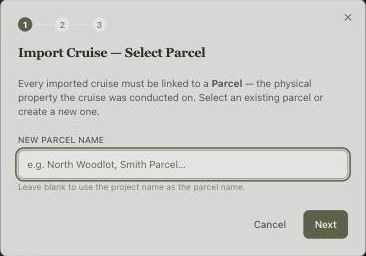
To bring in a cruise done in a spreadsheet, open the client and click Import Project.
- Select Parcel. Every imported cruise belongs to a parcel. Choose one of the client’s parcels or type a name for a new one; leave it blank to name the parcel after the project.
- File & Details. Give the project a name and location, set its BAF (10 unless you change it), and choose the Excel file (.xlsx or .xls) from your computer. The page reads it and shows how many stands, plots and trees it found.
- Confirm. Check the counts and click Import Cruise. The project appears under the client and in the field app’s project list.
The workbook is laid out as for the field app’s Excel import: sheets named Stands, Plots and Trees (Chapter 9, section 9.5). The field app’s import also matches unfamiliar species codes to your species list, which this one doesn’t, so use it for data from another program.
15.5Vermont UVA Management Plan
The plan builder writes a Forest Management Plan for Vermont’s Use Value Appraisal program to the 2026 FPR standards, in FPR’s order. Your cruise data fills in the numbers; you write the rest on the page.
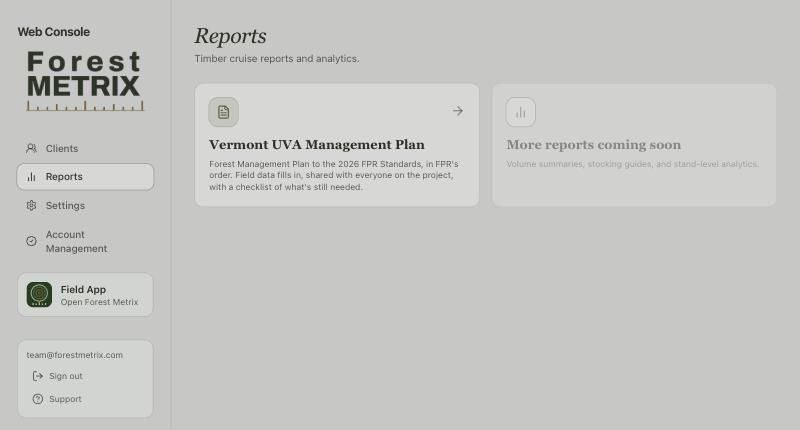
- Click Reports on the left, then Vermont UVA Management Plan. (Or click Reports on a project’s row on the client’s page, which opens its plan directly.)
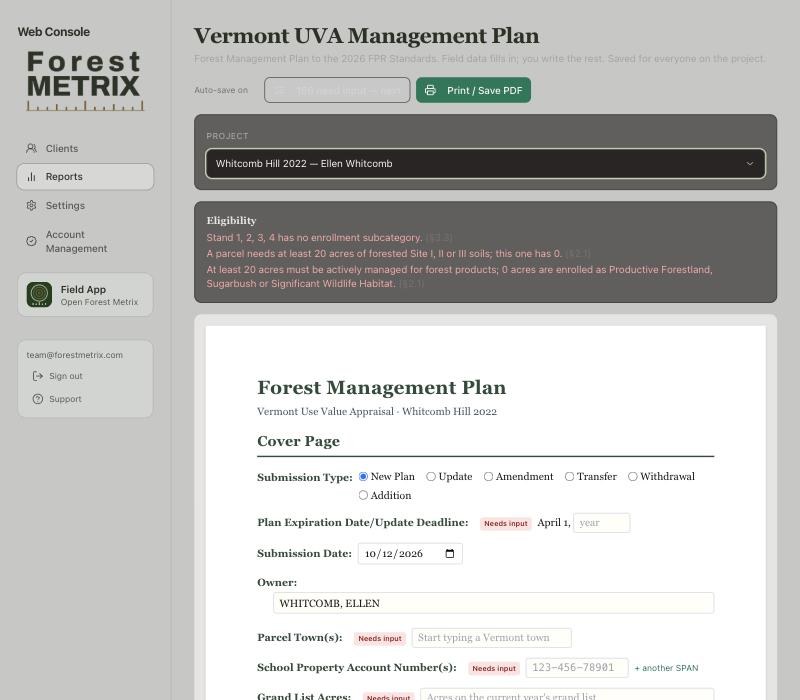
- Choose the project. The list has your own projects and those shared with you, marked (shared).
- Work down the plan. Fields with a red Needs input tag are still empty; the button at the top, N need input — next, jumps to the next one.
- Click Print / Save PDF for a copy to submit. Choose Save as PDF in your browser’s print window.
What fills in
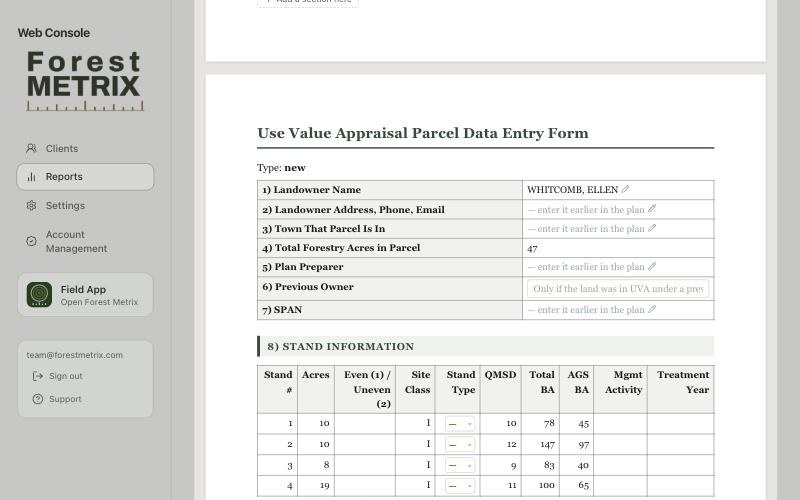
- The landowner from the project’s parcel owner, the stands with their mapped acres, and the stand data for the Parcel Data Entry Form: site class, QMSD, total and AGS basal area.
- The treatment schedule, from the prescriptions you write for each stand.
- AMP status, from the AMP Status plot field if you recorded it in the field.
Stands come first
Start each stand by choosing its Enrollment Subcategory (Productive Forestland, Sugarbush, Reserve and so on). It decides which elements the stand needs, and the plan asks for those.
Eligibility
The Eligibility box at the top checks the parcel against the program’s rules, such as at least 20 acres of forested Site I–III soils and 20 acres actively managed, and names the section of the standards each rule comes from. Its acreage counts only stands that have a subcategory, so until you choose them it reads 0 and says those stands aren’t counted yet.
Saving and sharing
- The plan saves as you type (Auto-save on, then Saved). There’s no Save button.
- The plan belongs to the project, so everyone the project is shared with sees and edits the same plan. Someone with view-only access sees View only.
- If someone else saved while you were editing, the page asks whether to Keep my version or Load theirs.
Management plans for more states are coming. Custom reports are available as an add-on.
15.6Settings, account and support
- Settings shows the email you sign in with, when you last signed in, and your license: plan, status, renewal date, and whether it’s your own or your organization’s. Nothing there can be changed.
- Account Management opens the account page, where seats, billing and passwords are managed (Chapter 13).
- Support lists the ways to reach us (Chapter 14).
The Office pages count as your computer: you can use them while you’re signed in on your phone. If the same login opens on another computer, the first one shows This login is in use and hands over after a countdown, or right away with Take over now (Chapter 1).