Help and support
Where to find help inside the app, how to reach Forest Metrix, and what to try first when something isn’t working.
14.1Help & Support in the app
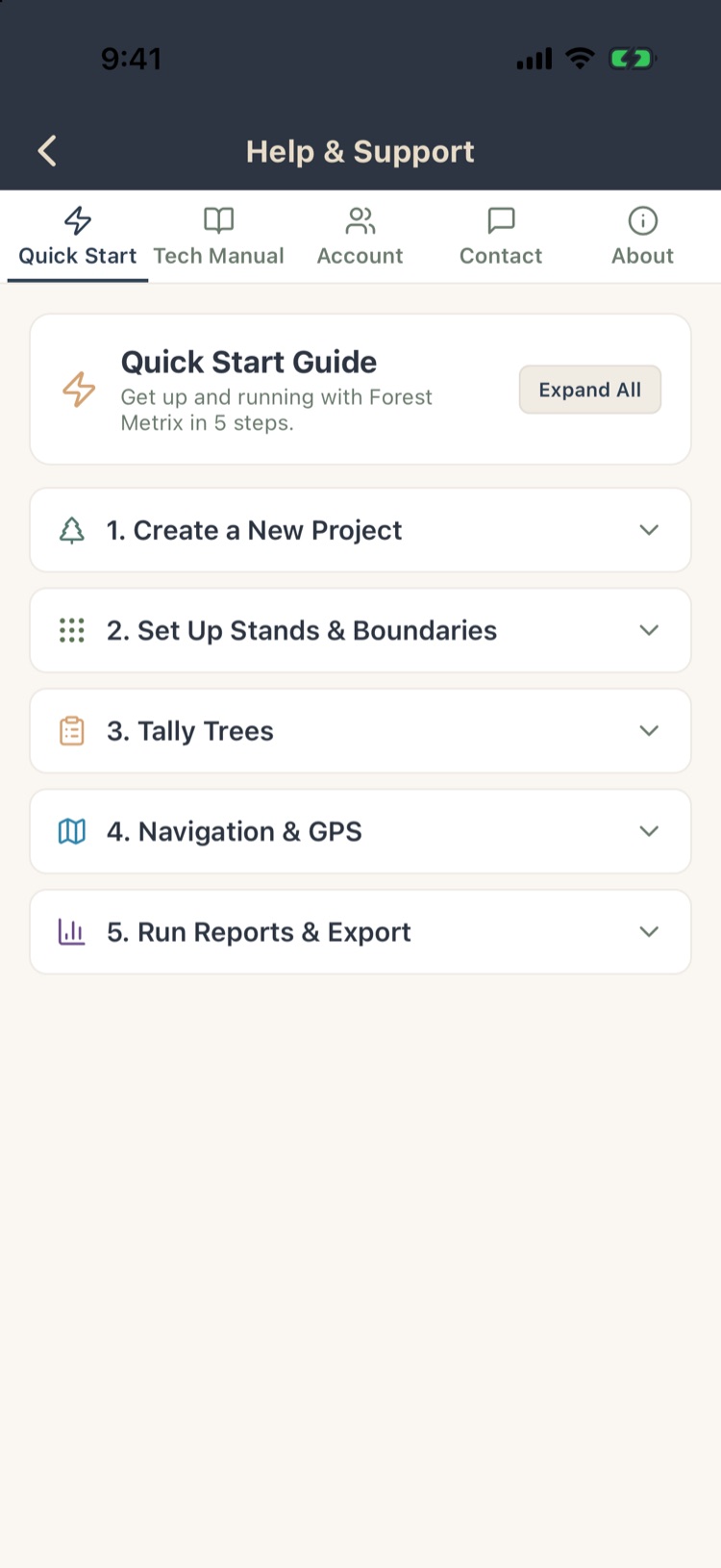
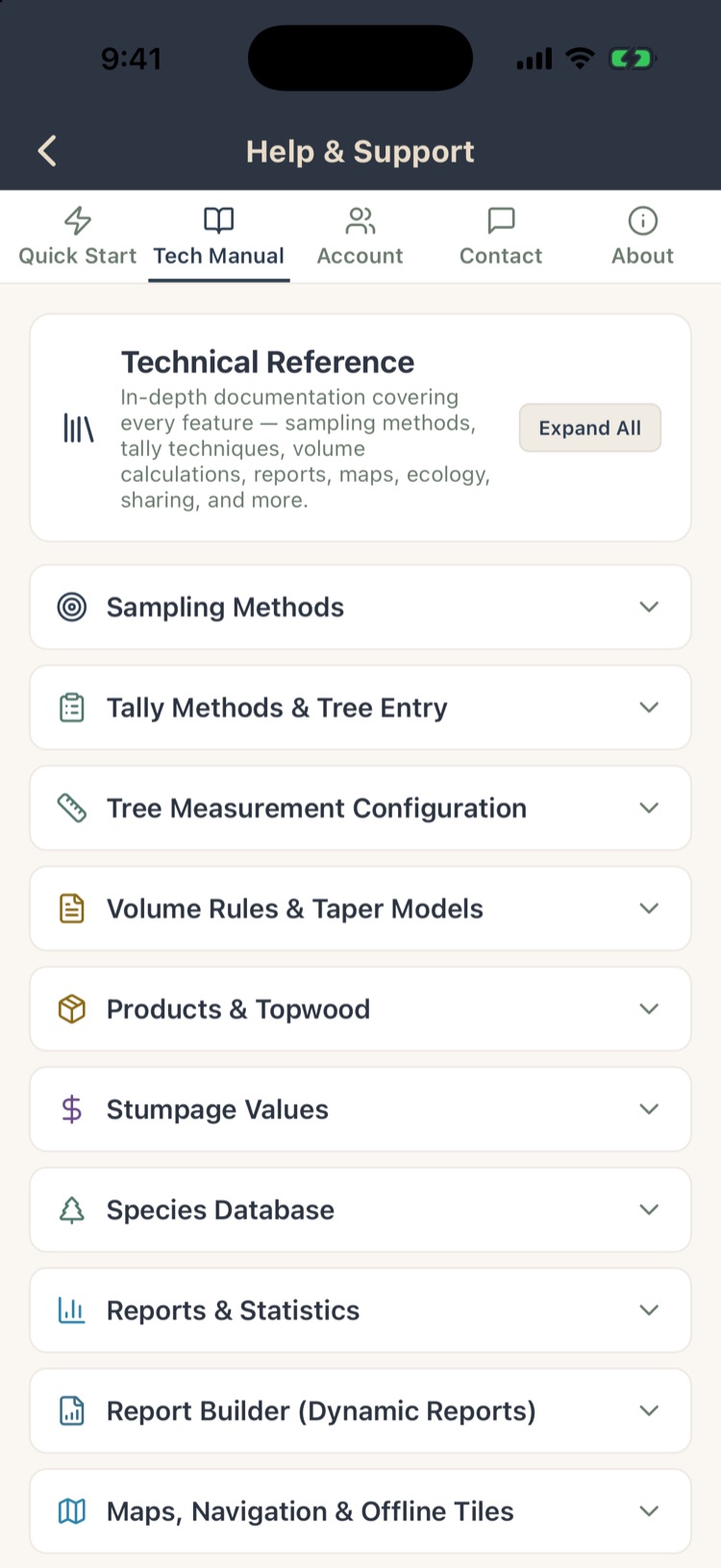
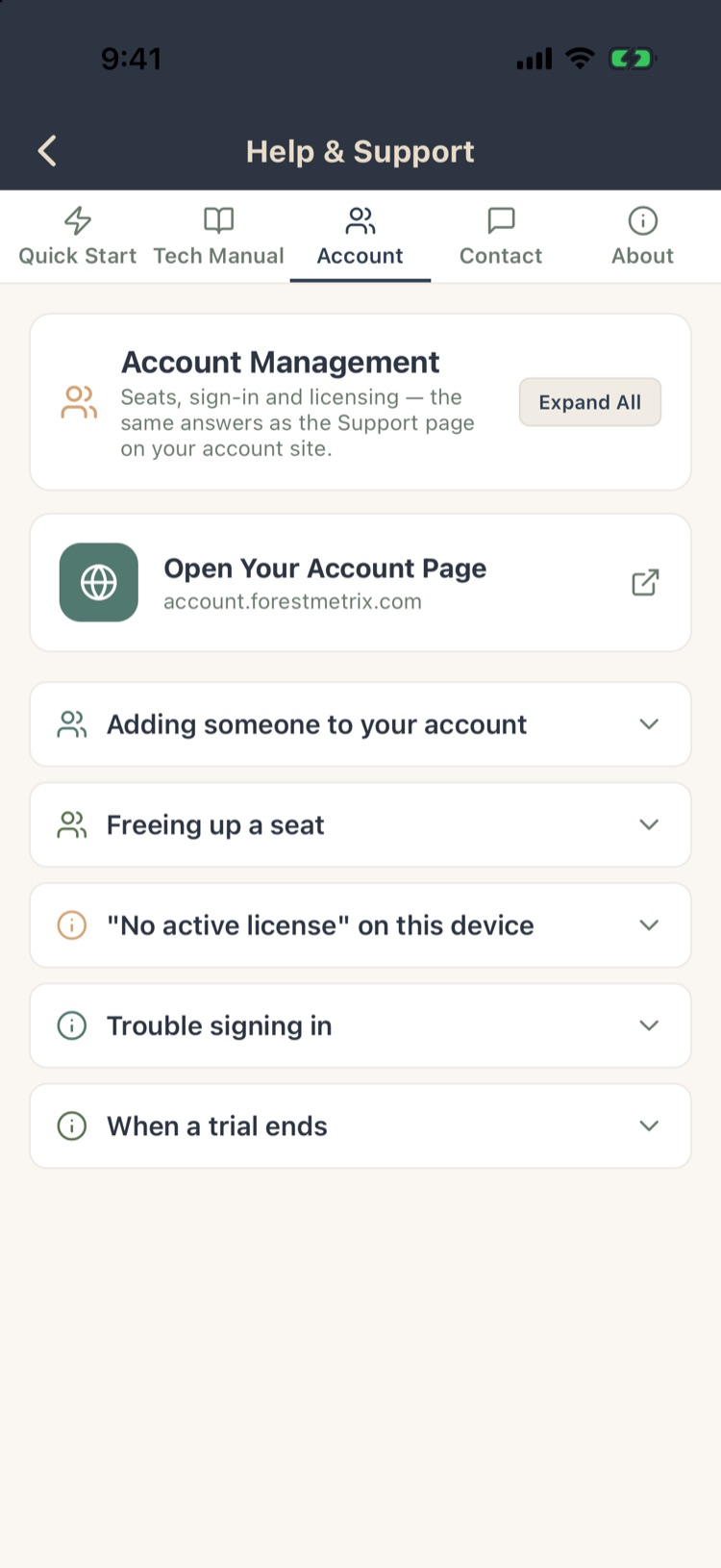
Tap Help on the Projects screen. Five tabs:
- Quick Start: five steps from a new project to a finished report. Expand All opens every step.
- Tech Manual: a reference to every method and setting: sampling, tally methods, volume rules and taper models, products, values, species, reports, maps, sharing, sync, devices, GPS, photos and Voice Tally. Topics for versions you don’t have are marked.
- Account: seats, sign-in, licenses and trials, with a link to your account page.
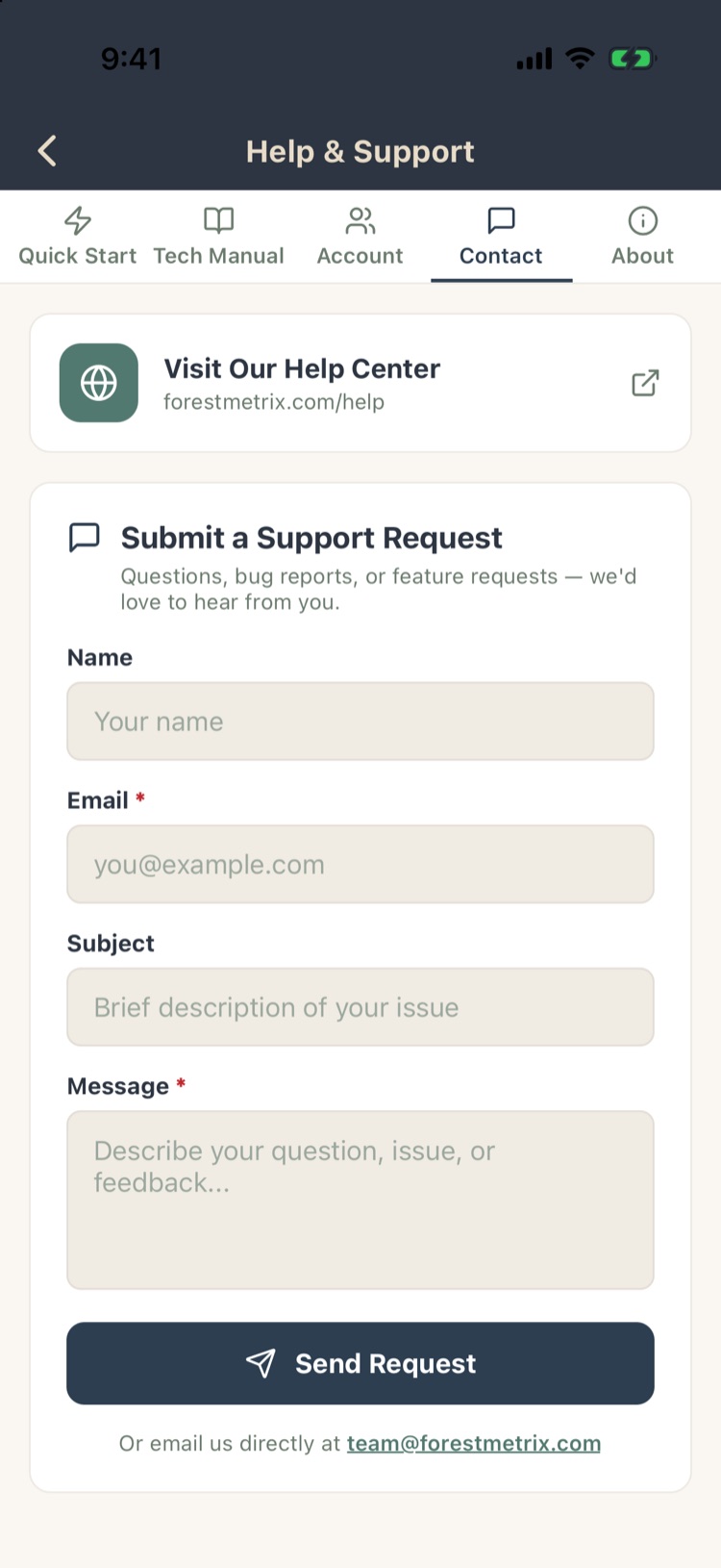
- Contact: the help center and a support form (section 14.2).
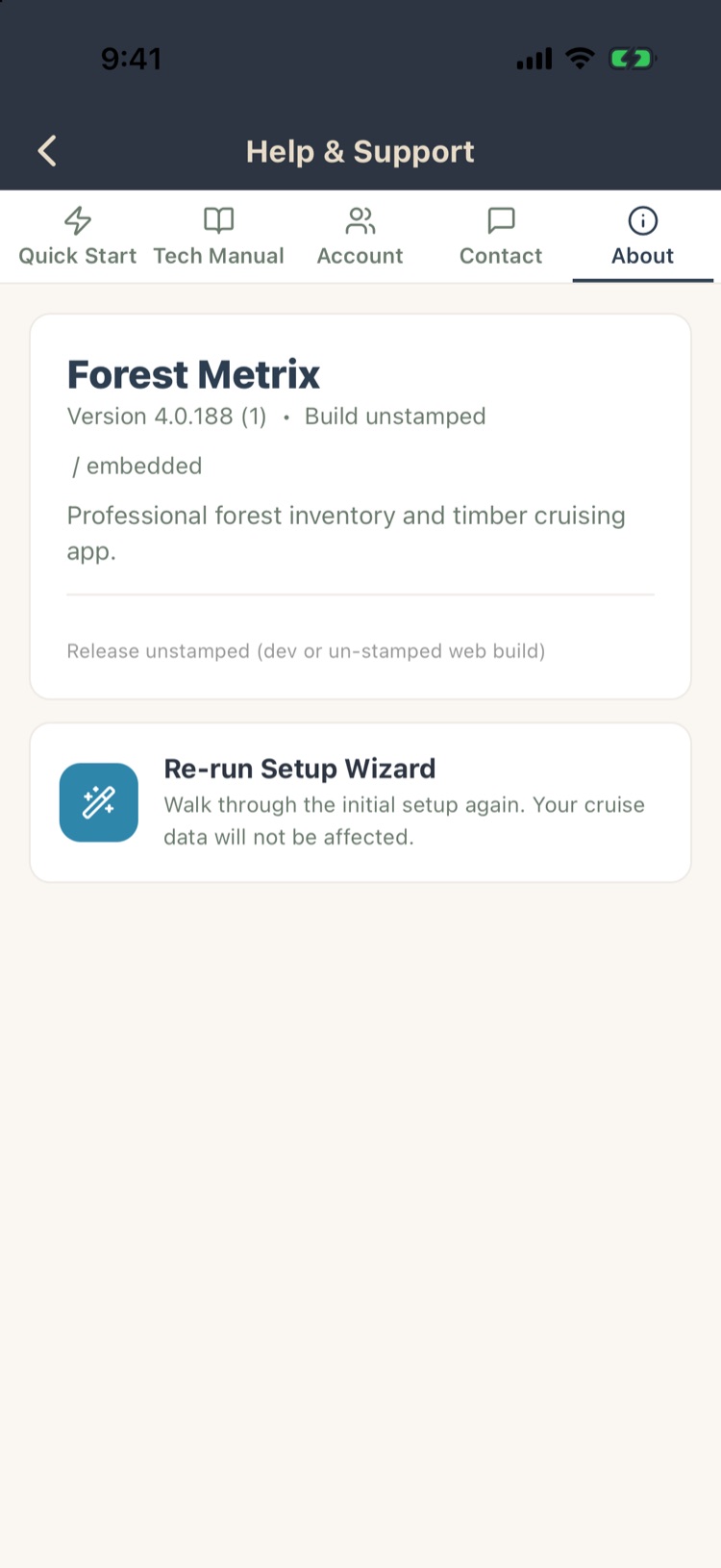
- About: the app version, and Re-run Setup Wizard, which walks through the first-time setup again without touching your projects.
14.2Contacting support
- Support form: Help › Contact. Your name, your email (required), a subject and your message. Tap Send Request.
- Email: [email protected].
- Help center: the link at the top of the Contact tab.
Help us help you: give the project name, what you were doing, what you expected and what happened instead, and the app version from Help › About. A screenshot helps. If support asks for logs, turn on Settings › Debug Log Shipping, repeat the problem, and turn it off again (Chapter 11, section 11.7).
14.3Troubleshooting
| Problem | Try |
|---|---|
| A shared project hasn’t appeared | Tap the refresh arrow at the top of the Projects screen. Check the owner shared it with the email you sign in with. |
| “Sync pending” won’t clear | Check for a signal or Wi-Fi. Tap the sync strip on Project Home to see why, or to retry. Changes are safe on the phone meanwhile. |
| Changes from a teammate aren’t showing | They arrive about every minute for the project you have open; other projects update when you open them. Make sure the teammate’s phone has synced. |
| No map in the woods | Maps are saved only for projects whose map you saved while online. Next time, open the project on Wi-Fi, tap the map icon at the bottom of Project Home, and wait for the check mark (Chapter 7, section 7.7). |
| GPS position jumps or is off | Give the phone a clear view of the sky, hold it away from your body, and wait for the arrow to settle. Turn on averaging (Chapter 7, section 7.9). |
| A track stopped when the phone locked | Set location access to Always for Forest Metrix (Chapter 7, section 7.5). |
| Plots are in the wrong stand | Plots → By Stand → the pen on a stand card → Reassign Plots (Chapter 3, section 3.10). |
| Report numbers look low or high | Read the banners at the top of the report: unfinished plots, plots outside stands, products without a volume rule, stands without acres. Check the plot status on the Plots list (Chapter 4). |
| Value reports are blank | Enter stumpage prices under Settings › Values (Chapter 10, section 10.7). |
| “No active license” | Your seat may have been reassigned. Ask your account administrator, or check the account page (Chapter 13). |
| “This login is in use” | The account is signed in on another phone. Wait 30 seconds, or tap Take over now (Chapter 13, section 13.5). |
| Can’t register a new phone | Two devices are already registered. Remove an old one under Devices (Chapter 13, section 13.4). |
| Voice Tally doesn’t hear species | Use Practice voice tally to see what it hears, and add aliases for the words it misses (Chapter 5, section 5.12). |
| Photos aren’t in the office | Photos upload when you have a connection, or only on Wi-Fi if you set that (Chapter 11, section 11.5). |